ACE3P GUI User Guide
ACE3P GUI is a desktop application for setting up, running and analysing ACE3P accelerator simulations on NERSC Perlmutter and S3DF (SLAC). It builds the ACE3P input file and the Slurm batch script from forms, uploads them with your mesh, submits the job, tracks it, and reads the results back.
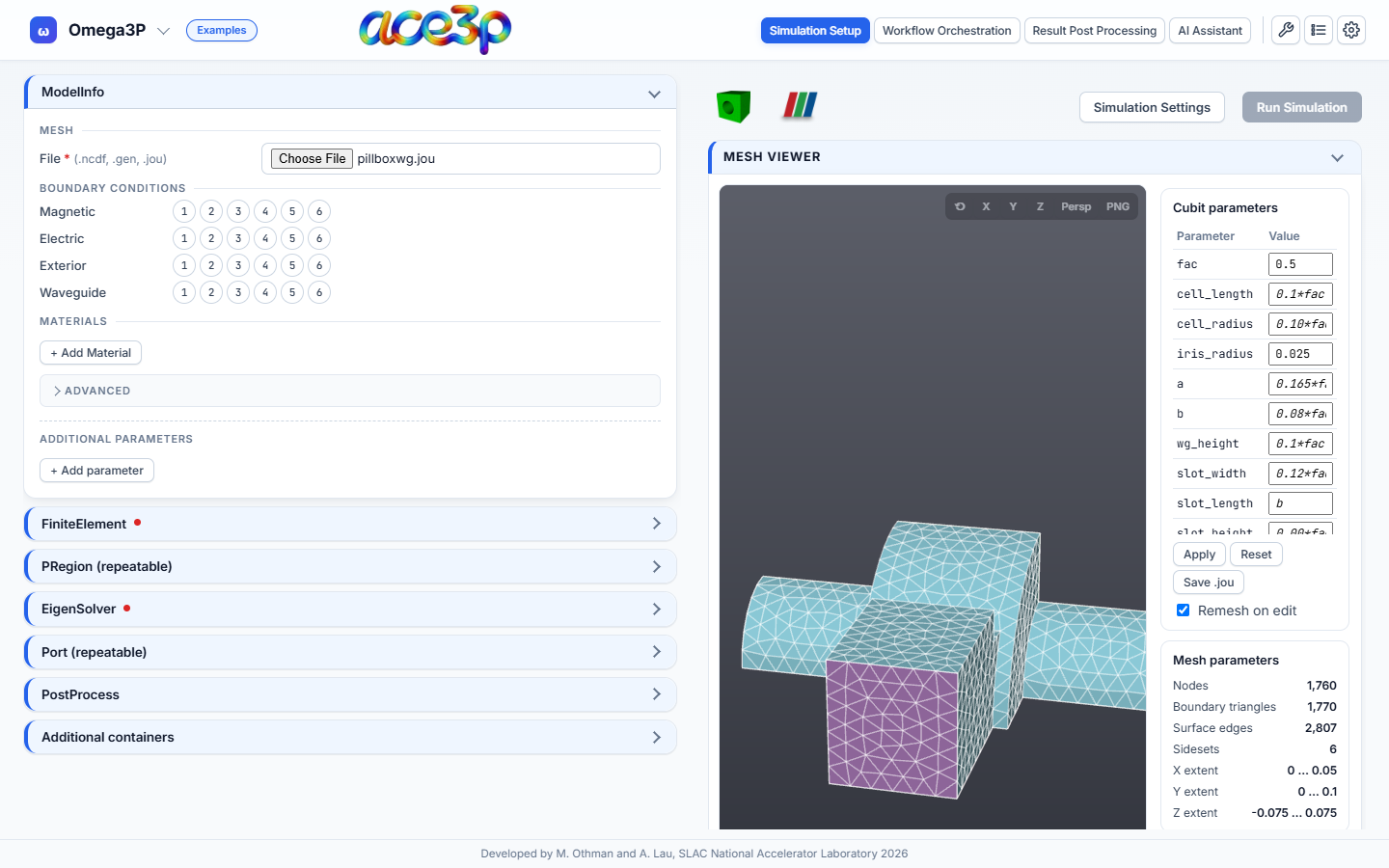
What you can do with it
| Task | Where in the app |
|---|---|
| Build an input file for Omega3P, S3P, T3P, Track3P, Pic3P, TEM3P or Gun3P | Simulation Setup |
Load a Cubit journal (.jou), mesh it, view it, and edit its parameters |
Mesh Viewer in Simulation Setup |
| Set the Slurm account, QOS, nodes, tasks and walltime | Simulation Settings |
| Submit to Perlmutter or S3DF | Run Simulation |
| Follow job status, read logs, download results, cancel | Jobs (wrench icon) |
| Run parameter sweeps and optimizations with LUME-ACE3P | Workflow Orchestration |
| Compute RF quantities with acdtool, plot fields and result tables | Result Post Processing |
| Ask questions about jobs and results, get plots and proposed input files | AI Assistant |
How to read this guide
- Start with Install and launch.
- Read The interface for the layout.
- Follow Your first Omega3P job from start to finish. It covers every step needed to set up a job correctly.
- Use the remaining sections as a reference for each part of the app.
Screenshots
Screenshots were taken from version 1.4.15 on Windows. The job names, user
name jdoe and run directories in them are examples. Your version number is
shown in Settings → Updates.
Requirements
- An account on NERSC Perlmutter or S3DF with an allocation that can run ACE3P.
- For NERSC: your password and the MobileOTP app. For S3DF: your password and Duo.
- To mesh Cubit journals on your own computer: a local Cubit installation. On Perlmutter and S3DF the site Cubit is used.
- No Python or other software is needed to run the released application.
Get help
- Hover over a field to see its tooltip. Turn tooltips on or off in Settings → Simulation.
- Click an ⓘ marker next to a heading to read what that section does.
- Open the Messages window (list icon → Messages) to see every status line and error the app has reported.
- Report problems on the GitHub issue tracker. Include the version number from Settings → Updates.