Mesh and Cubit parameters
Mesh formats
Choose the mesh in ModelInfo → File (TEM3P and Gun3P have the same picker in their problem containers). Three formats are accepted:
| Format | What happens on selection | What the batch script does |
|---|---|---|
.ncdf |
Drawn in the Mesh Viewer directly. | Nothing; the solver reads it. |
.gen (Genesis) |
Converted to .ncdf on your computer and drawn. |
acdtool meshconvert converts it on the cluster. |
.jou (Cubit journal) |
Meshed with Cubit, converted and drawn. | Runs Cubit on the journal, then acdtool meshconvert. |
ModelInfo → File is filled in automatically with the .ncdf name the solver
will read. With a .jou, the name comes from the journal's own export genesis
line.
The mesh you see on screen and the mesh the job runs on are produced separately: the viewer meshes on the machine running the app, the job meshes again on the compute node. Both use the same journal.
Requirements for a journal
-
It must export a Genesis file, for example:
A journal without an
export genesis(orexport mesh) line produces no mesh, and the Messages window says so. -
It must define the sidesets the solver needs (
sideset <n> surface ...). The sideset numbers become the boundary-condition circles in the form. - It must run without user input. The app runs Cubit with
-nographics -batch -nojournal.
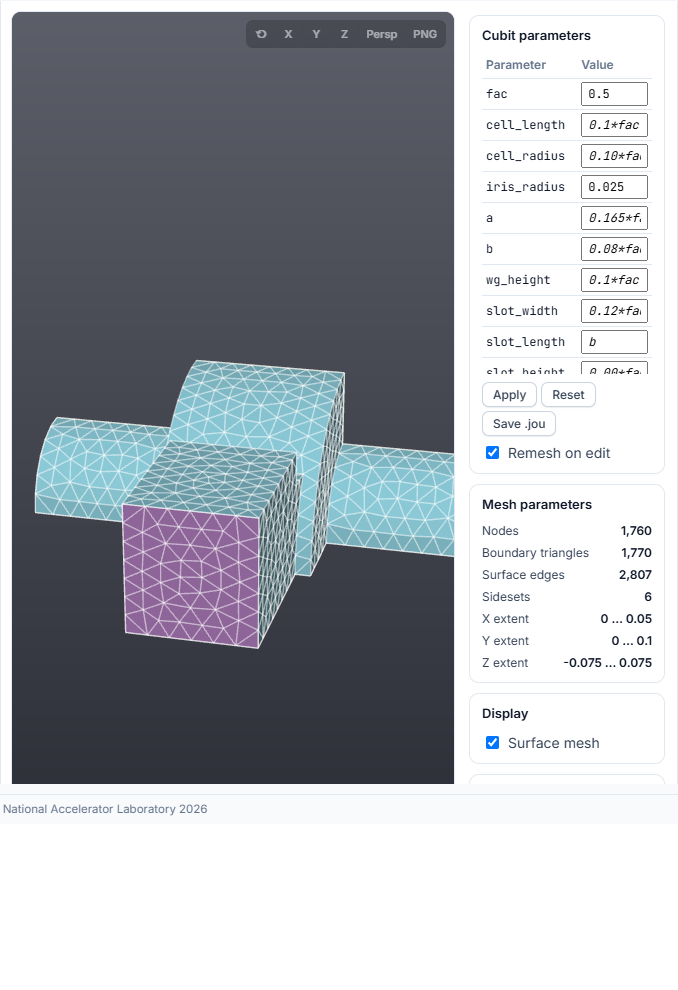
Mesh Viewer
| Action | Control |
|---|---|
| Rotate | Left-drag |
| Pan | Right-drag, middle-drag, or Shift + left-drag |
| Zoom | Mouse wheel (click inside the viewer first) |
| Reset the view | Double-click, or the ↺ button |
| Look along an axis | X, Y, Z (press again for the opposite side) |
| Perspective / parallel projection | Persp |
| Save an image | PNG |
| Identify a surface | Hover: the sideset id and its boundary condition are shown |
The side column has three panels:
- Mesh parameters: node count, boundary triangles, surface edges, number of sidesets and the X/Y/Z extent of the model.
- Display → Surface mesh: shows or hides the element edges. It is disabled for very large meshes, with the reason in its tooltip.
- Sidesets: one checkbox per sideset, with its colour. All and None toggle every sideset. A hidden sideset stays as a faint outline.
The Mesh Viewer heading folds the card away. The arrow at its right end does the same.
Cubit parameters
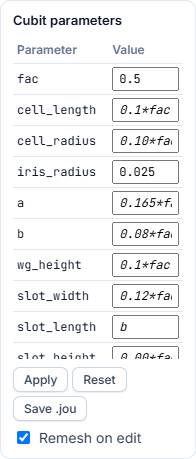
When the mesh is a .jou, the Cubit parameters panel lists every
#{name = value} variable declared in the journal.
To change the geometry:
- Click a value and type the new one. Expressions such as
0.1*facare kept as written. - Press Enter or click outside the field.
- With Remesh on edit ticked, the journal is rewritten with the new value, meshed again and redrawn.
| Button | Effect |
|---|---|
| Apply | Remeshes with the values typed so far. Use it when Remesh on edit is off. |
| Reset | Restores the values of the journal you originally selected. |
| Save .jou | Downloads the journal with the current values. |
The edited journal is the one submitted: Run Simulation and Workflow Orchestration upload it with the new values. A value typed but not yet committed is applied automatically before submission.
Cubit and ParaView buttons
The Cubit logo opens the Cubit application. The ParaView logo opens ParaView. Neither is needed to mesh or view a journal.
- On your computer: the app searches the usual install folders and
PATH. If it cannot find the program, it asks for the path toclaro.exe(Cubit) orparaview.exeand remembers it. - On Perlmutter or S3DF: the program comes from the ACE3P environment and opens on your ThinLinc or NoMachine desktop.
A button is disabled for 10 seconds after a successful launch so a double click does not start two copies.
Cubit not found
If the Messages window reports that Cubit was not found:
- Install Cubit, or
- set the environment variable
ACE3P_CUBIT_EXEto the full path of the Cubit executable and restart the app, or - select a
.genor.ncdfinstead, which needs no Cubit on your computer.
The job itself does not depend on your local Cubit: the batch script meshes the journal on the cluster with the site installation.