Workflow Orchestration
Workflow Orchestration builds a LUME-ACE3P study. A study runs a chain of steps — for example Cubit → Omega3P — many times with different input values, collects chosen results into one table, and optionally lets an optimizer pick the next input values.
The builder writes the study's YAML configuration. You submit it with the same Run Simulation dialog as a single job; it then runs as one Slurm job that launches every evaluation inside its allocation.
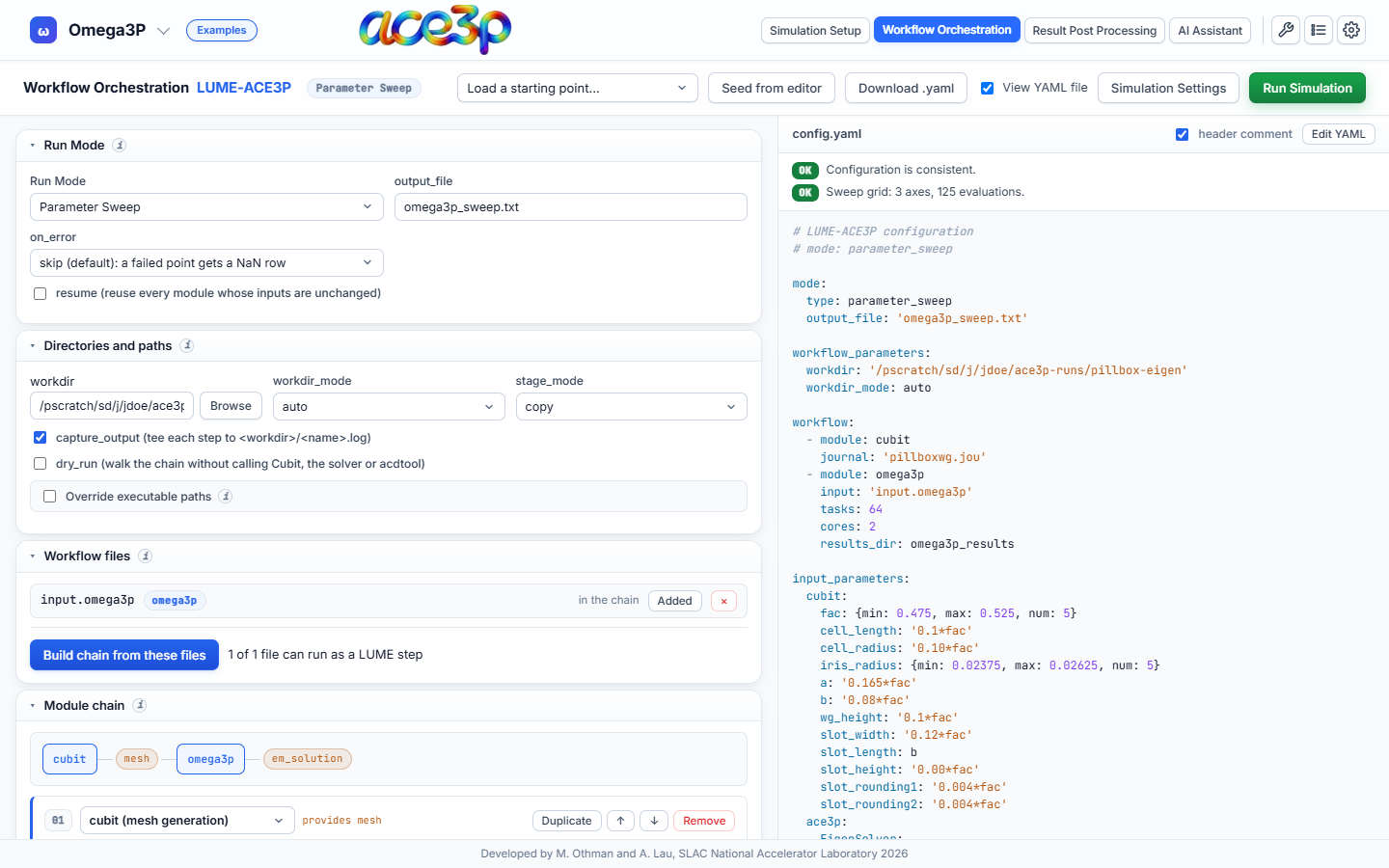
Run modes
| Run mode | What it does | Needs |
|---|---|---|
| Single Run | Evaluates the chain once. | A chain. |
| Parameter Sweep | Evaluates the chain on a grid. Every input given as a list or as min, max, num is one axis; all axes are combined. |
At least one swept input. |
| Optimization | Hands the chain to Xopt, which chooses input values to minimize or maximize an objective. | Optimization problem and optimizer settings. |
| GP Surrogate Model | Explores first, trains a Gaussian Process, then samples it on a grid. | Optimization problem, optimizer settings and a posterior sweep grid. |
The number of evaluations in a sweep is the product of the axis lengths: three axes of 5 values are 125 evaluations.
Build a parameter sweep step by step
1. Prepare the solver input in Simulation Setup
- Set up the solver as for a single job: mesh, boundary conditions, solver parameters.
-
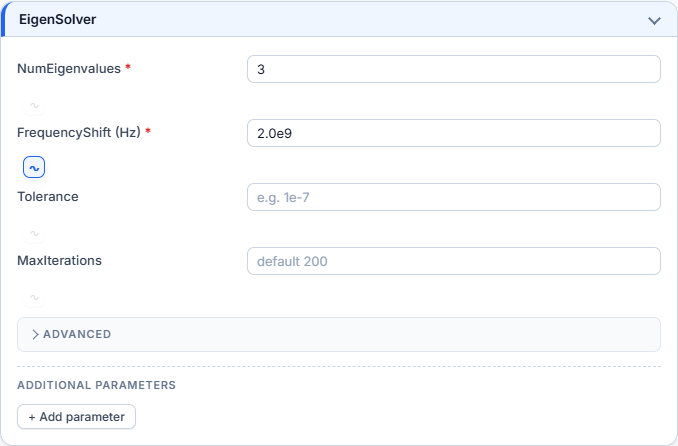
Mark the fields you want to sweep: click the small ∿ button below the field. It turns blue when marked.
-
In the preview toolbar press Add to workflow. The input file goes into the workflow file library.
The #{name = value} variables of a selected Cubit journal are offered as
sweep inputs automatically.
2. Open Workflow Orchestration
Press Workflow Orchestration in the header. The first time, the builder is
seeded from the editor: a cubit step for the journal, a solver step for the
input file, the marked fields and the journal variables as inputs.
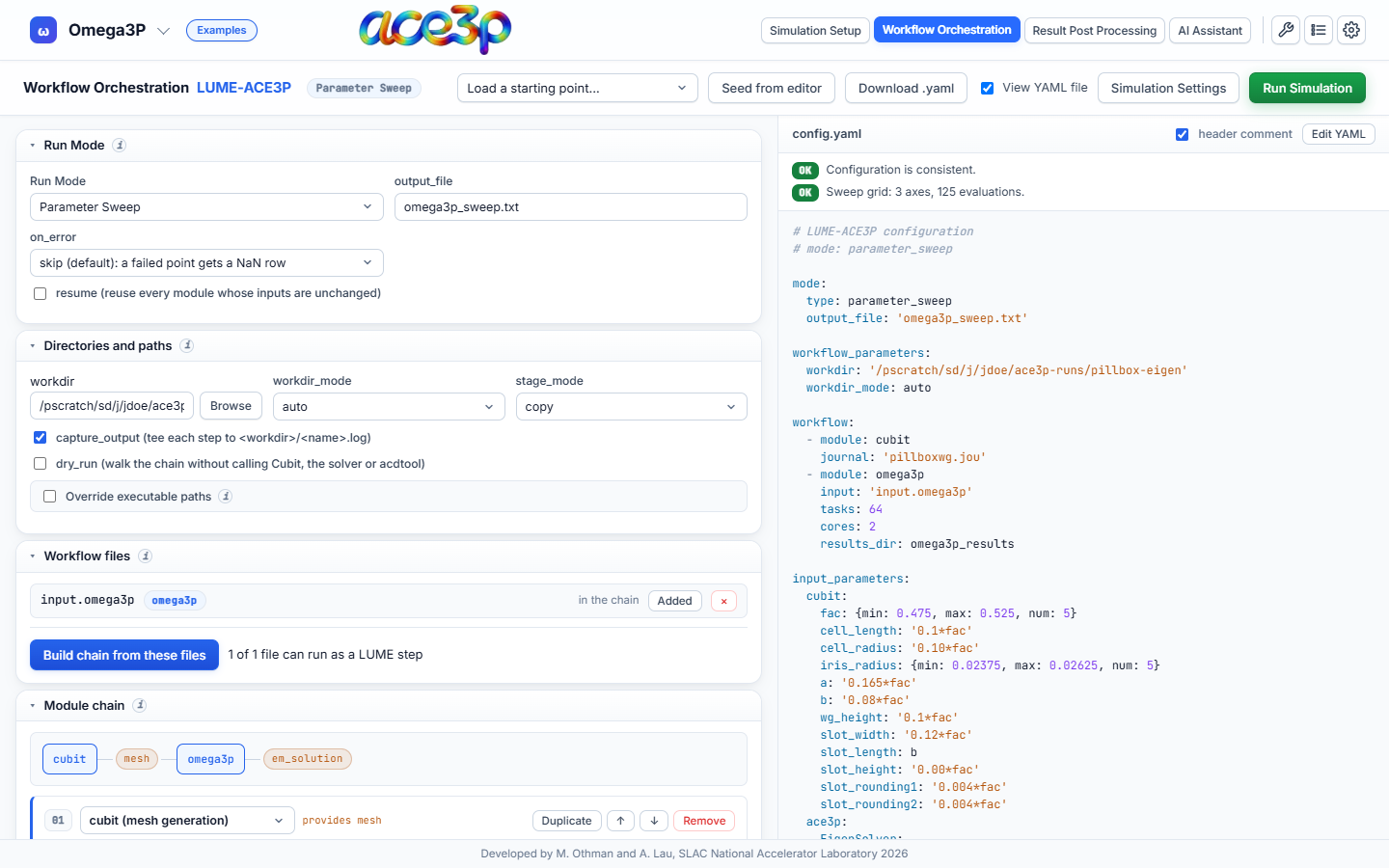
Toolbar:
| Control | Effect |
|---|---|
| Load a starting point… | Loads a preset: Omega3P dispersion sweep, S3P optimization, T3P power balance, Omega3P p-refinement, Omega3P frequency target, or an empty configuration. |
| Seed from editor | Rebuilds the configuration from the editor's current mesh, input file and marked fields. |
| Download .yaml | Saves the YAML file. |
| View YAML file | Shows or hides the YAML preview on the right. |
| Simulation Settings | The same Slurm settings as in Simulation Setup. |
| Run Simulation | Submits the study. |
The builder saves your draft in the browser after every change. It is there when you come back.
3. Set the run mode
In Run Mode, choose Parameter Sweep and set:
- output_file: the result table, for example
omega3p_sweep.txt. - on_error:
skiprecords a failed point as a row of NaN and continues;raisestops the study. - resume: reuses the work of points whose inputs have not changed. Use it to restart an interrupted study.
4. Check directories and paths
- workdir: filled with the run directory at submission. Leave it.
- workdir_mode:
auto— one folder per point, named after the point's values.indexed— one folder per point, named by its index.manual— all points in one folder.
- stage_mode: how prebuilt files reach each case folder:
copy,symlinkorhardlink. - capture_output: writes each step's console output to
<name>.log. - dry_run: walks the chain without running Cubit, the solver or acdtool. Use it to check a configuration.
5. Check the workflow files and the module chain
Workflow files lists every input file added from the editor. Build chain from these files rebuilds the chain from them.
Module chain lists the steps in run order:
| Module | Step |
|---|---|
cubit |
Meshes a journal. |
mesh |
Uses a prebuilt mesh file. |
omega3p, s3p, t3p, track3p |
Runs the solver on its input file. |
acdtool |
Post-processes a solver's results. |
Each step has fields for its input file, tasks and cores (the srun -n and
-c of each evaluation) and its results directory. Duplicate adds a second
instance of a step with its own name, for example two Omega3P runs at different
orders. ↑ / ↓ reorder, Remove deletes.
Pic3P, TEM3P and Gun3P cannot be steps. Their files are uploaded with the study but not run.
6. Define the inputs
Input variable space holds the values that change between evaluations.
- cubit rows: journal variables, by the exact name used in the journal.
- ace3p rows: input-file values, by dotted path, for example
EigenSolver.FrequencyShift.
Enter each value as:
- a single value — fixed for every point,
- a list, for example
[2.0e9, 2.2e9, 2.4e9]— one axis, - a range
min,max,num— one axis ofnumevenly spaced values.
The scope column decides which step reads a row. shared reaches every step of that kind; a step name reaches only that step.
7. Define the outputs
Extracted quantities lists the results written to the output table. Each
row names the step (module), the result section and quantity, and, for
indexed quantities such as modes, which entry to take (at). The fields
suggest valid names as you type.
Derived quantities compute new columns from the outputs with expressions,
for example `R/Q` * 2 or abs(f - 2.856e9).
8. Check the configuration
The panel above the YAML lists problems. Every line must read OK before the study can be submitted. The example above reports:
9. Set the Slurm resources
Press Simulation Settings. The walltime is the budget for the whole
study, not one evaluation. Multiply the time of one evaluation by the number
of evaluations, and request nodes enough for the tasks of a step.
10. Submit
Press Run Simulation. The dialog is the same as for a single job; its
previews show the YAML and submit.sbatch.
Uploaded into the run directory: the mesh, every input file the YAML uses, the
YAML and submit.sbatch. The batch script loads ACE3P and the LUME-ACE3P
environment, then runs run-lume-ace3p on the YAML.
With workdir_mode auto or indexed, the case folders are created inside
the run directory as case_<value> or case_<index>. With manual, every
point runs in the run directory itself.
The study appears in the Jobs dashboard as an ordinary job of its first solver.
Optimization
- Set Run Mode to Optimization.
- In Input variable space, define each variable the optimizer may change.
- In Optimization problem, list:
- variables with their lower and upper bounds,
- objectives (
MINIMIZEorMAXIMIZE) referring to an extracted or derived quantity, - optional constraints and observables (recorded but not optimized).
- In Optimizer settings, choose the Xopt generator and the number of evaluations.
The Omega3P frequency target preset is a complete example: it tunes a dimension so a mode hits a target frequency.
Edit the YAML by hand
Press Edit YAML above the preview to type into the YAML directly. From then on, the form no longer overwrites the text, and the study is submitted exactly as shown. The checks panel only reports an empty file in this mode. Press Use builder output to discard the hand edits and return to the form.
Results
Each evaluation writes its own folder. The result table named in output_file collects one row per point. Plot it across the sweep in Result Post Processing → Workflow Sweeps.