Settings
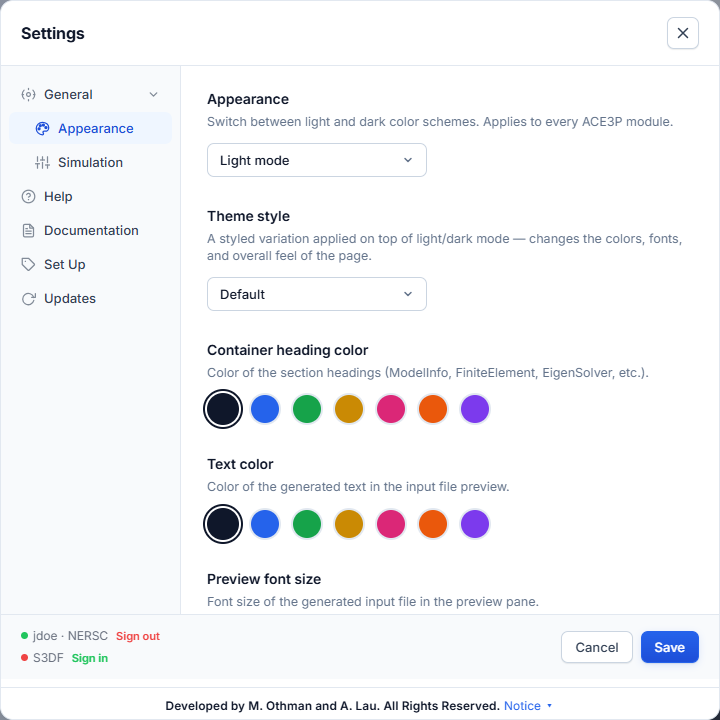
Open Settings with the gear icon in the header. Press Save to apply changes, Cancel to discard them.
Note
Appearance and simulation settings reset to their defaults each time the page is reloaded.
Appearance
| Setting | Options | Effect |
|---|---|---|
| Appearance | Light mode, Dark mode | Colour scheme of the whole app. |
| Theme style | Default, Photonics Spectrum, Facet Blueprint, HPC Terminal | A visual style on top of light or dark mode. |
| Container heading color | Seven colours | Colour of the container headings in the solver forms. |
| Text color | Seven colours | Colour of the text in the input-file preview. |
| Preview font size | Small, Medium, Large | Font size of the input-file preview. |
Simulation
| Setting | Options | Effect |
|---|---|---|
| Tooltips | Enabled, Disabled | Hover descriptions on fields and buttons. |
| Parameter safety | On, Off | On: Run Simulation stays disabled until every required field is filled. Off: submit with any values. |
| Date format | MM/DD/YY, DD/MM/YY | Dates in the Jobs dashboard. |
| Backend URL | URL | The app's own server. Leave empty to detect it. |
Help, Documentation, Set Up
Short in-app explanations of the main features, the documentation for each part of the app, and the setup steps. This guide covers the same ground in more detail.
Updates
Shows the running version (ACE3P GUI v1.4.15) and what is new in it. Quote the version when you report a problem.
To update: close the browser tab and the console window, download the new release and start it. See Install and launch.
Cluster accounts
The bottom of the Settings dialog lists both clusters:
- green dot,
user · NERSC, Sign out — signed in, - red dot, Sign in — not signed in,
- No sign-in needed — the app runs on that cluster.