Fill in the input file
The form on the left builds the ACE3P input file. The preview on the right shows the result and updates on every change.
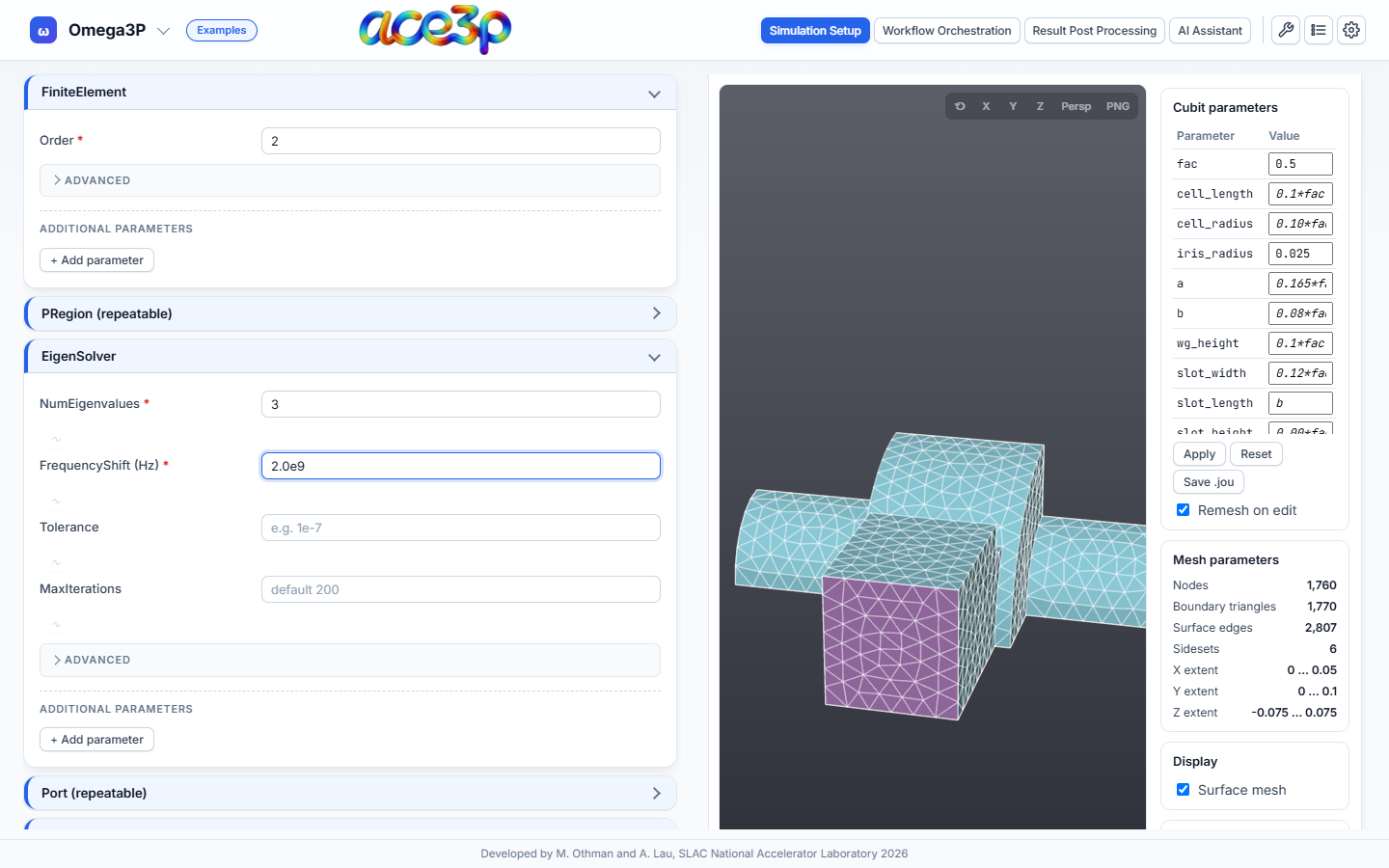
Containers and fields
Each box in the form is one container of the input file (ModelInfo,
EigenSolver, …). Click its heading to open or close it.
- Type values exactly as ACE3P expects them. Numbers can be written as
2.0e9,2e9or2000000000. - A field left empty is not written. The solver uses its default, shown as
grey placeholder text (for example
default 200). - A red * marks a required field. A red dot on the container heading means a required field inside is empty.
- Hover over a field label to read its tooltip.
Boundary conditions
Once a mesh is selected, each boundary-condition row shows the mesh's sideset numbers as circles.
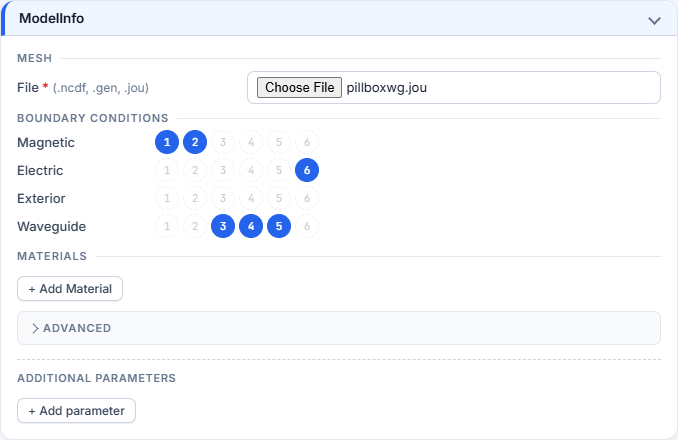
- Click a circle to assign the sideset; click it again to remove it.
- A sideset belongs to one boundary type. Its circle is greyed out in every other row.
- A sideset number that the input file uses but the mesh does not contain is shown with a dashed outline. Click it to remove it.
- Without a mesh, the rows are plain text fields. Type comma-separated sideset
numbers, for example
3, 4.
Additional parameters and containers
The form covers the documented parameters of each solver. To write any other parameter:
- Press + Add parameter at the bottom of the container.
- Enter the parameter name and value.
To add a whole container the form does not have, open Additional
containers at the end of the form and add a parameter with a path, for
example NewBlock/Inner. Use [2] to address the second block of a repeated
container, for example ModelInfo/Material[2].
When you load an input file, every parameter the form has no field for is kept as an additional parameter, so the file is written back without loss.
Preview toolbar
Tick View input file and sbatch to show the text. Choose the INPUT FILE or SBATCH tab.
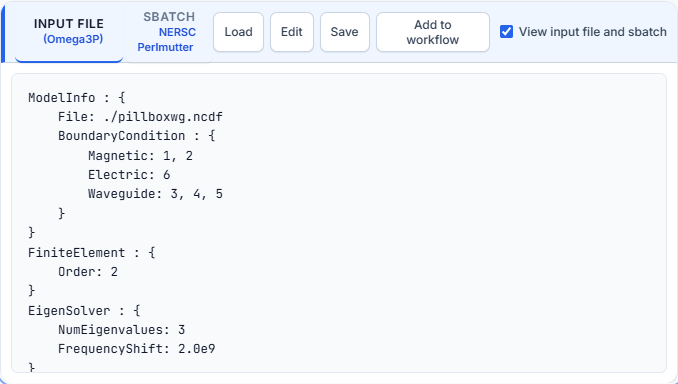
| Button | Effect |
|---|---|
| Load | Opens an input file from your computer. The extension picks the solver (.omega3p → Omega3P). The form is filled from the file. |
| Edit | Makes the text editable. The form follows your edits. Press Done to finish. |
| Save | Downloads the file as input.<solver>. |
| Add to workflow | Adds the current input file to the workflow file library for Workflow Orchestration. |
On the SBATCH tab, Edit and Save do the same for the batch script.
File name
The input file is always input.<solver>. A loaded file is renamed to that
name, whatever it was called on disk. The batch script refers to this name.
Comments in loaded files
Comments in a loaded file are kept while the text is unchanged. Once you edit a field, the file is regenerated from the form and comments are dropped. Keep a copy of a heavily commented file.
Reset
View → Reset form clears the Omega3P or S3P form and the selected mesh. View → Undo reset brings it back.