Run a simulation
Before you press Run Simulation
Run Simulation turns green when all three are ready:
- Mesh: a
.jou,.genor.ncdffile is chosen in a mesh picker (not needed for Track3P). A mesh name typed into the form does not count: the app can only upload a file it holds. - Input file: no required field is empty.
- Sbatch script: generated for the chosen cluster.
Hover over the grey button to see what is missing. To submit with required fields empty, turn off Settings → Simulation → Parameter safety.
The Run Simulation dialog
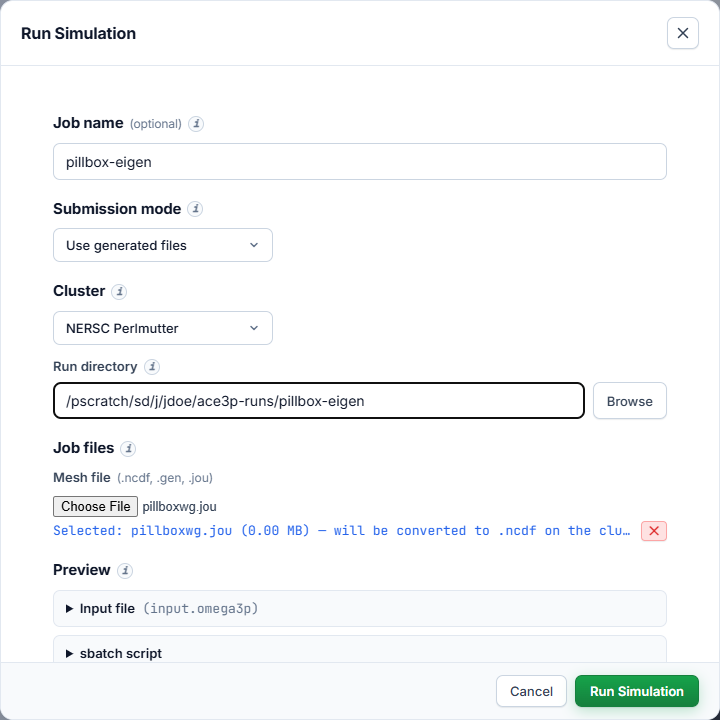
| Field | What to enter |
|---|---|
| Job name | Optional label shown in the Jobs dashboard. |
| Submission mode | Use generated files (default) or Upload custom files. |
| Cluster | NERSC Perlmutter or S3DF. Picking a cluster you are not signed in to opens the sign-in dialog first. |
| Run directory | Absolute path on the cluster where the job runs. |
| Mesh file | The mesh chosen in the editor. Choose another file here to replace it. |
| Preview | The exact input file and sbatch script that will be uploaded. Read-only here. |
| Advanced | Compute node (S3DF only, leave as iana) and Backend URL (leave as is). |
Press Run Simulation to submit. The progress bar shows each stage:
uploading the mesh, the input file and the script, then running sbatch.
Choose a run directory
Use a scratch file system. It is fast and has room for large result files.
| Cluster | Example run directory |
|---|---|
| NERSC Perlmutter | /pscratch/sd/<first letter>/<user>/ace3p-runs/<job> |
| S3DF | /sdf/scratch/users/<first letter>/<user>/ace3p-runs/<job> or your group's /sdf/data/... area |
Press Browse to pick a folder on the cluster.
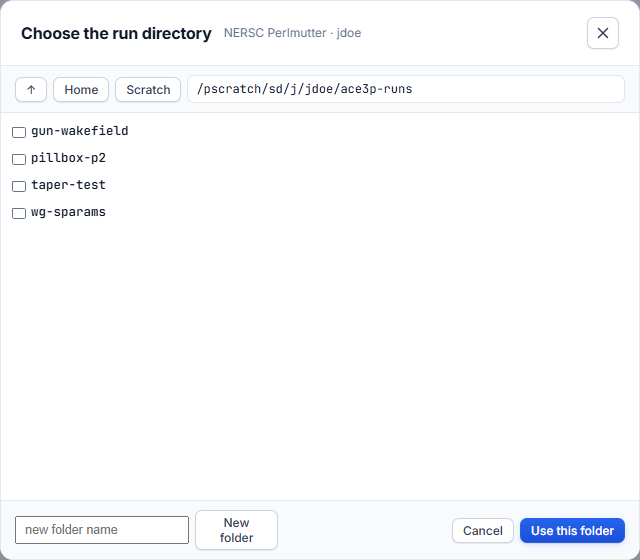
- Home and Scratch jump to those folders.
- Type a path into the box and press Enter to go there.
- New folder creates a folder in the current location.
- Press Use this folder to fill in the run directory.
Rules:
- The files are uploaded into the run directory exactly as typed. No subfolder is created for you.
- A run directory that holds a submitted, queued or running job of yours is refused. Use one directory per job.
- Submitting into the directory of a finished job overwrites its input files. Results from the earlier run that are not overwritten stay in place. Use a new directory to keep runs apart.
What is uploaded
| File | Name in the run directory |
|---|---|
| Mesh | Its own name, for example pillboxwg.jou |
| Input file | input.<solver>, for example input.omega3p |
| Batch script | submit.sbatch |
The app then runs sbatch submit.sbatch in the run directory and records the
Slurm job id.
After submission
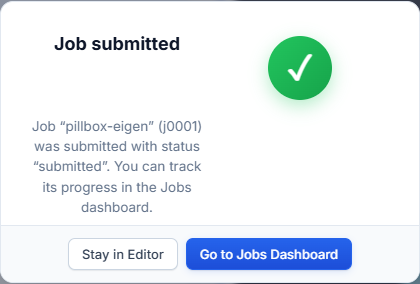
- Stay in Editor keeps you in the form, for example to prepare the next job.
- Go to Jobs Dashboard opens the job list.
Result Post Processing remembers this run directory and opens on it next time.
Custom files
Choose Upload custom files in Submission mode to submit your own input file and batch script instead of the generated ones.
- Input file: your ACE3P input file. It is uploaded as
input.<solver>, with the solver taken from the file extension. - Sbatch script: your batch script. Every occurrence of the original input
file name in the script is replaced with
input.<solver>, so itssrunline still finds the file. - Mesh file: as in generated mode.
The script must run the solver from the run directory and must not contain Windows line endings. The app removes carriage returns from every text file before upload.
Common submission errors
| Error | Cause | Fix |
|---|---|---|
| Directory already holds a running job | Another job of yours is active in that folder. | Pick a new run directory. |
Invalid account or account/partition combination |
The account in Simulation Settings is wrong for this cluster or partition. | Set your own project or facility:group. |
Job violates accounting/QOS policy |
Walltime or node count exceeds the QOS limit, or the allocation is exhausted. | Lower the walltime or nodes, or use another QOS. |
| Session expired | The cluster session closed. | Sign in again from Settings and submit again. |