The interface
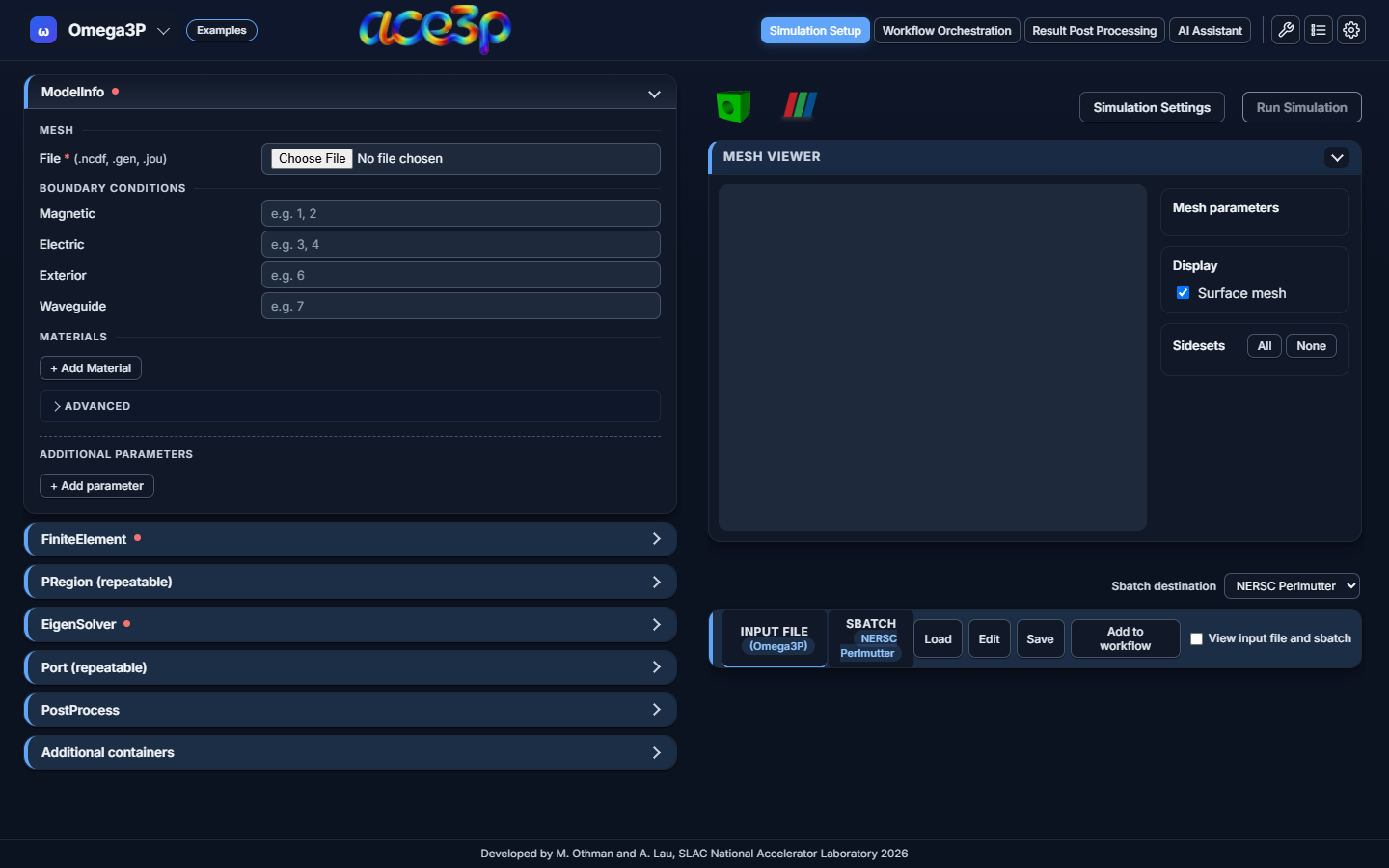
The app opens on Simulation Setup with an empty Omega3P form.
Header

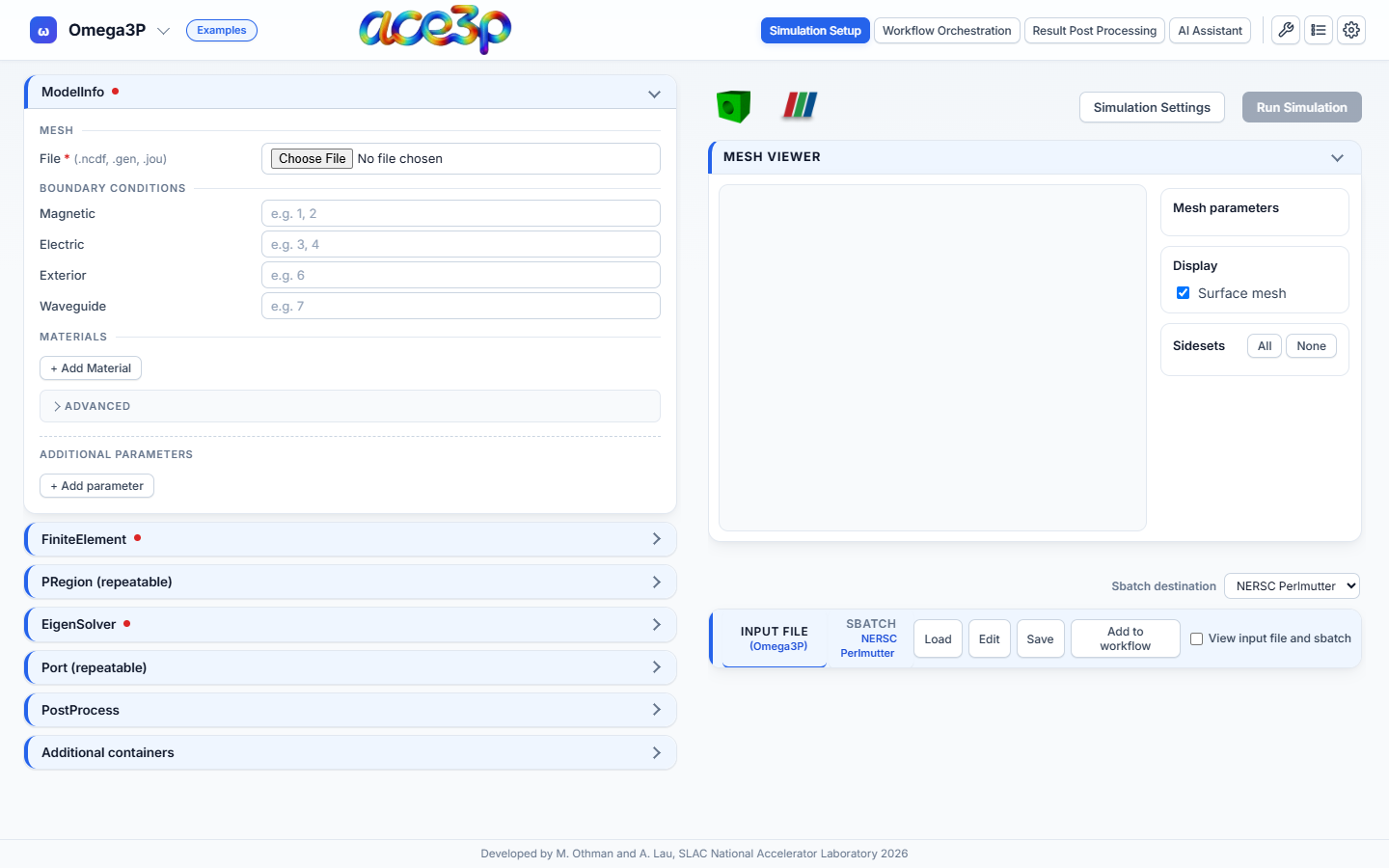
From left to right:
| Control | What it does |
|---|---|
Solver menu (shows Omega3P) |
Picks the ACE3P solver. See Choose a solver. |
| Examples | Opens ready-made example files. Shown on Simulation Setup and Workflow Orchestration. See Examples. |
| Cluster badge | Appears when the app runs on Perlmutter or S3DF. Shows the cluster and your user name. |
| Simulation Setup | The solver editor: forms, mesh viewer, input file and sbatch preview. |
| Workflow Orchestration | The LUME-ACE3P builder for sweeps and optimizations. See Workflow Orchestration. |
| Result Post Processing | Acdtool, Field Viewer, Data Explorer and Workflow Sweeps. See Result Post Processing. |
| AI Assistant | A chat assistant that reads your jobs and results. See AI Assistant. |
| Wrench icon | Opens the Jobs dashboard. See Monitor jobs. |
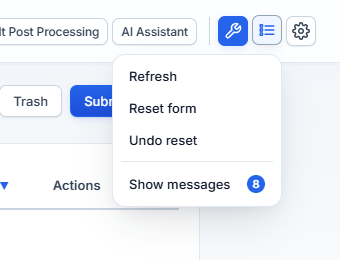
| List icon | The View menu: Refresh, Reset form, Undo reset, Messages. |
| Gear icon | Settings: appearance, simulation checks, help, cluster sign-in. |
The active view's tab is highlighted. One view is visible at a time. Switching views keeps the state of the others: a form you filled stays filled while you look at the Jobs dashboard.
Simulation Setup layout
- Left pane: the solver form, one collapsible box per input-file container
(
ModelInfo,FiniteElement,EigenSolver, …). A red dot on a box means a required field inside it is empty. - Right pane, top: the Cubit and ParaView launch buttons, Simulation Settings and Run Simulation.
- Right pane, middle: the Mesh Viewer with the Cubit parameters, display options and sideset list.
- Right pane, bottom: the Sbatch destination menu and the Input File / Sbatch preview with Load, Edit, Save and Add to workflow.
Click a pane to make it the active pane. The mouse wheel then scrolls only that pane. Over the other pane, the wheel does nothing and a hint reads Click to scroll this panel. A plot zooms with the wheel only after you click inside it.
View menu
| Item | What it does |
|---|---|
| Refresh | On the Jobs dashboard, reloads the job list or the open job. In the editor, reloads the page. |
| Reset form | Clears the Omega3P or S3P form and the selected mesh. |
| Undo reset | Restores the form cleared by the last reset. |
| Messages | Opens the Messages window. A badge counts unread messages and turns red when one is an error. |
Messages window
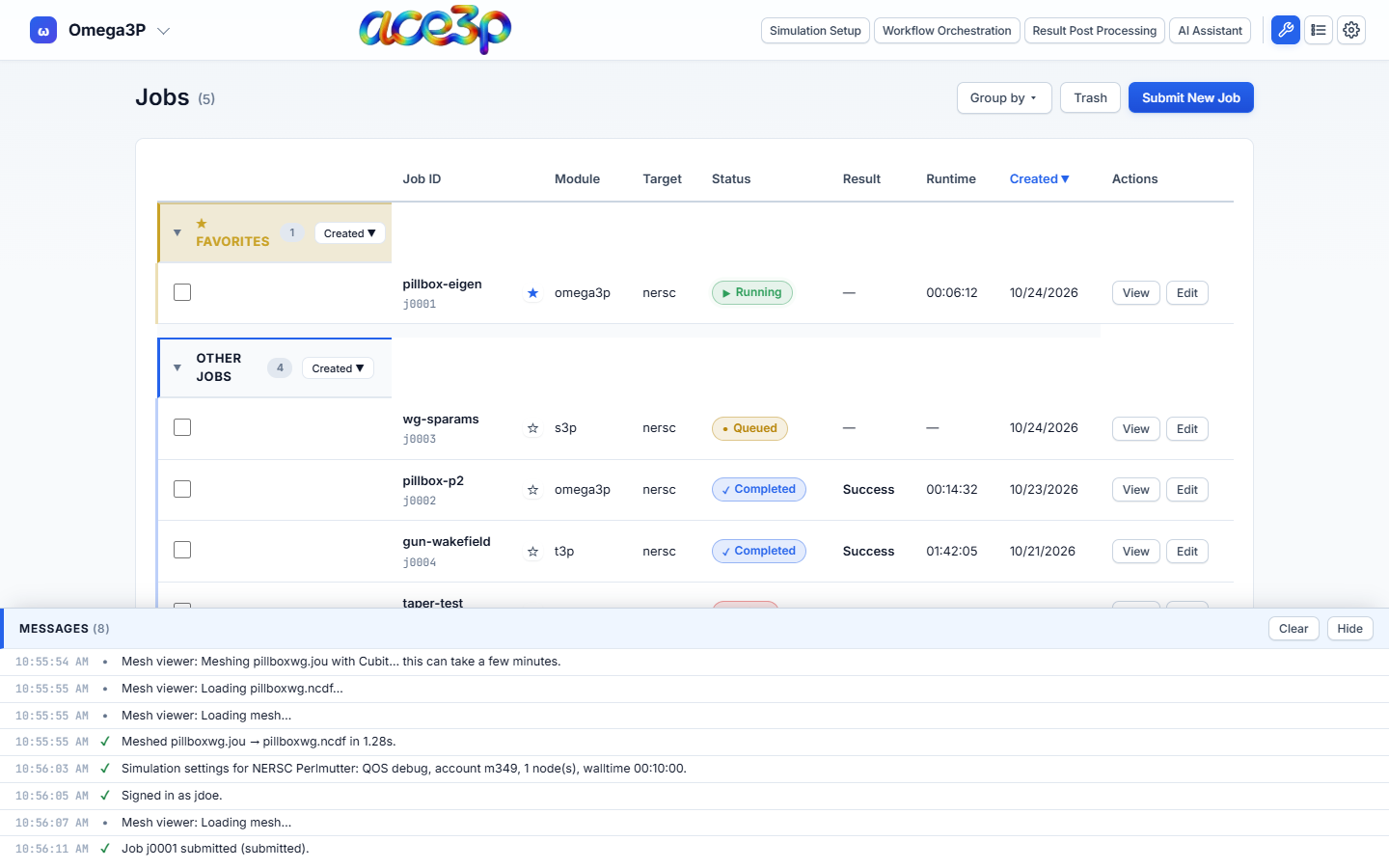
Every status line, warning and error goes to the Messages window at the
bottom of the screen. Open it from View → Messages. Entries with more detail
expand when clicked. Repeated messages are counted (×3) instead of listed
again. Clear empties the list, Hide closes the window.
Settings
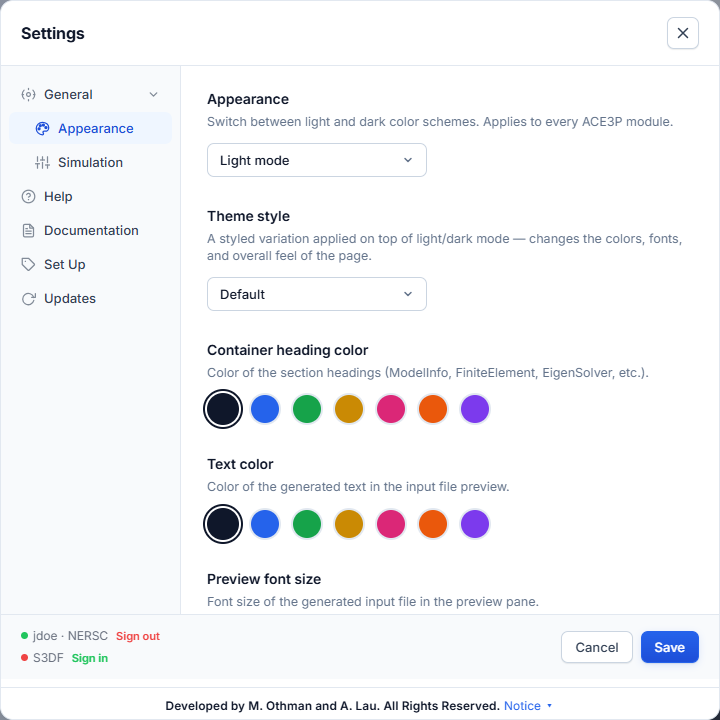
The left column lists the sections: Appearance, Simulation, Help, Documentation, Set Up and Updates. The bottom of the dialog shows each cluster with a Sign in or Sign out link. See Settings for every option.
Dark mode
Set Settings → Appearance → Appearance to Dark mode.