Simulation Settings (sbatch)
The batch script is generated from the solver, the mesh and the values in Simulation Settings. Open the dialog with the Simulation Settings button next to Run Simulation. The same dialog is in the Workflow Orchestration toolbar; one set of values serves both.
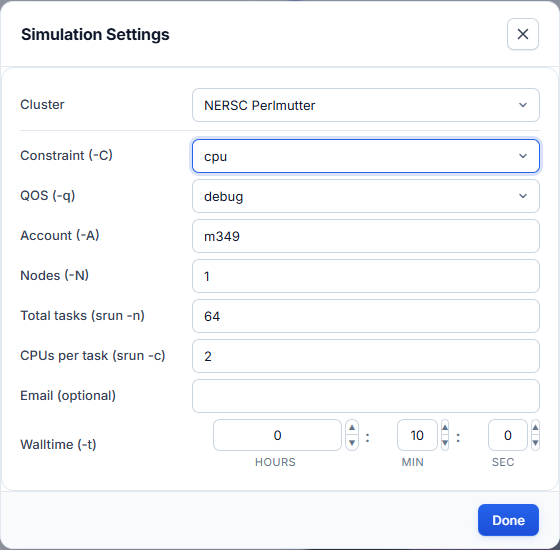
First pick the Cluster. The fields below change with it.
NERSC Perlmutter
| Field | Slurm option | Notes |
|---|---|---|
| Constraint | -C |
cpu or gpu. Picks the node type and the matching ACE3P build. |
| QOS | -q |
debug (short tests), regular, premium, preempt. |
| Account | -A |
Your NERSC project, for example m1234. Replace the default with a project you belong to. |
| Nodes | -N |
Number of nodes. |
| Total tasks | srun -n |
MPI ranks across all nodes. |
| CPUs per task | srun -c |
Logical CPUs per rank. |
--mail-user |
Optional. Adds --mail-type=END,FAIL: you get a mail when the job ends or fails. |
|
| Walltime | -t |
Hours, minutes, seconds. |
S3DF
| Field | Slurm option | Notes |
|---|---|---|
| Account | --account |
facility:group, for example rfar:regular. |
| Partition | --partition |
milano, roma, ampere, ada, turing. |
| Nodes | --nodes |
|
| Tasks per node | --ntasks-per-node |
MPI ranks per node. |
| CPUs per task | --cpus-per-task |
|
--mail-user |
Optional. Adds --mail-type=END,FAIL: you get a mail when the job ends or fails. |
|
| Walltime | --time |
The generated script
#!/bin/bash -l
#SBATCH -C cpu        # constraint: cpu or gpu
#SBATCH -q debug      # QOS: debug | regular | premium | preempt
#SBATCH -A m1234      # NERSC project repo
#SBATCH -N 1          # nodes
#SBATCH -t 00:10:00   # walltime HH:MM:SS
#SBATCH -J omega3p
#SBATCH -e %x-%j.err
#SBATCH -o %x-%j.out

export DIR=$PWD
source /global/cfs/cdirs/ace3p/perlmutter/CPU/perlmutter-ace3p-spack.sh

cd $DIR

# generate mesh from Cubit journal, then convert to .ncdf
CUBIT="${CUBIT:-$(type -P cubit || echo /global/cfs/cdirs/ace3p/perlmutter/CPU/cubit)}"
"$CUBIT" -nogui pillboxwg.jou
acdtool meshconvert pillboxwg.gen

srun -n 64 -c 2 --cpu-bind=cores /global/cfs/cdirs/ace3p/perlmutter/CPU/omega3p input.omega3p
#!/bin/bash
#SBATCH --account=rfar:regular  # facility:group
#SBATCH --partition=milano      # milano | roma | ampere | ada | turing
#SBATCH --job-name=omega3p
#SBATCH --nodes=1
#SBATCH --ntasks-per-node=32
#SBATCH --cpus-per-task=1
#SBATCH --time=02:00:00
#SBATCH --output=%x-%j.out
#SBATCH --error=%x-%j.err

echo $SLURM_JOB_NODELIST

source /sdf/group/rfar/ace3p/ace3p.sh
module load openmpi/v4.1.6-spack
export OMPI_MCA_sharedfp=^lockedfile

export DIR=$PWD
cd $DIR

# generate mesh from Cubit journal, then convert to .ncdf
CUBIT="${CUBIT:-$(type -P cubit || echo /sdf/group/rfar/software/cubit)}"
"$CUBIT" -nogui pillboxwg.jou
acdtool meshconvert pillboxwg.gen

srun -n 32 --cpu-bind=cores /sdf/group/rfar/ace3p/bin/omega3p input.omega3p
What the script does, in order:
- Requests the resources from Simulation Settings.
- Names the job after the solver (
-J omega3p). Logs are written to<solver>-<jobid>.outand<solver>-<jobid>.errin the run directory. - Loads the ACE3P environment of that cluster.
- With a
.joumesh: runs Cubit, thenacdtool meshconvert. With a.gen: runs onlyacdtool meshconvert. With a.ncdf: nothing. - Runs the solver with
srunoninput.<solver>.
Sbatch destination
The Sbatch destination menu below the Mesh Viewer switches the script between NERSC and S3DF without opening the dialog. The choice is remembered. When the app runs on a cluster, the script is generated for that cluster.
Sizing a job
- Walltime is a hard limit. Slurm kills the job when it is reached, and the solver writes no results. Ask for more time than you expect.
- The
debugQOS on Perlmutter is limited to 30 minutes. Use it to check that a new setup starts correctly, then resubmit withregular. - Memory grows with the number of unknowns, which grows with the mesh size and
FiniteElement → Order. If a job fails with an out-of-memory error, add nodes and keep the tasks per node the same.
Editing the script by hand
On the SBATCH tab press Edit to change the text directly, for example to
add #SBATCH options the dialog does not offer, then press Done. Changing
Simulation Settings, the mesh or the solver afterwards regenerates the script
and discards the hand edits, so make them last. For a fully custom script, use
Upload custom files in the Run Simulation dialog. See
Run a simulation.