Monitor jobs
Open the Jobs dashboard with the wrench icon in the header.
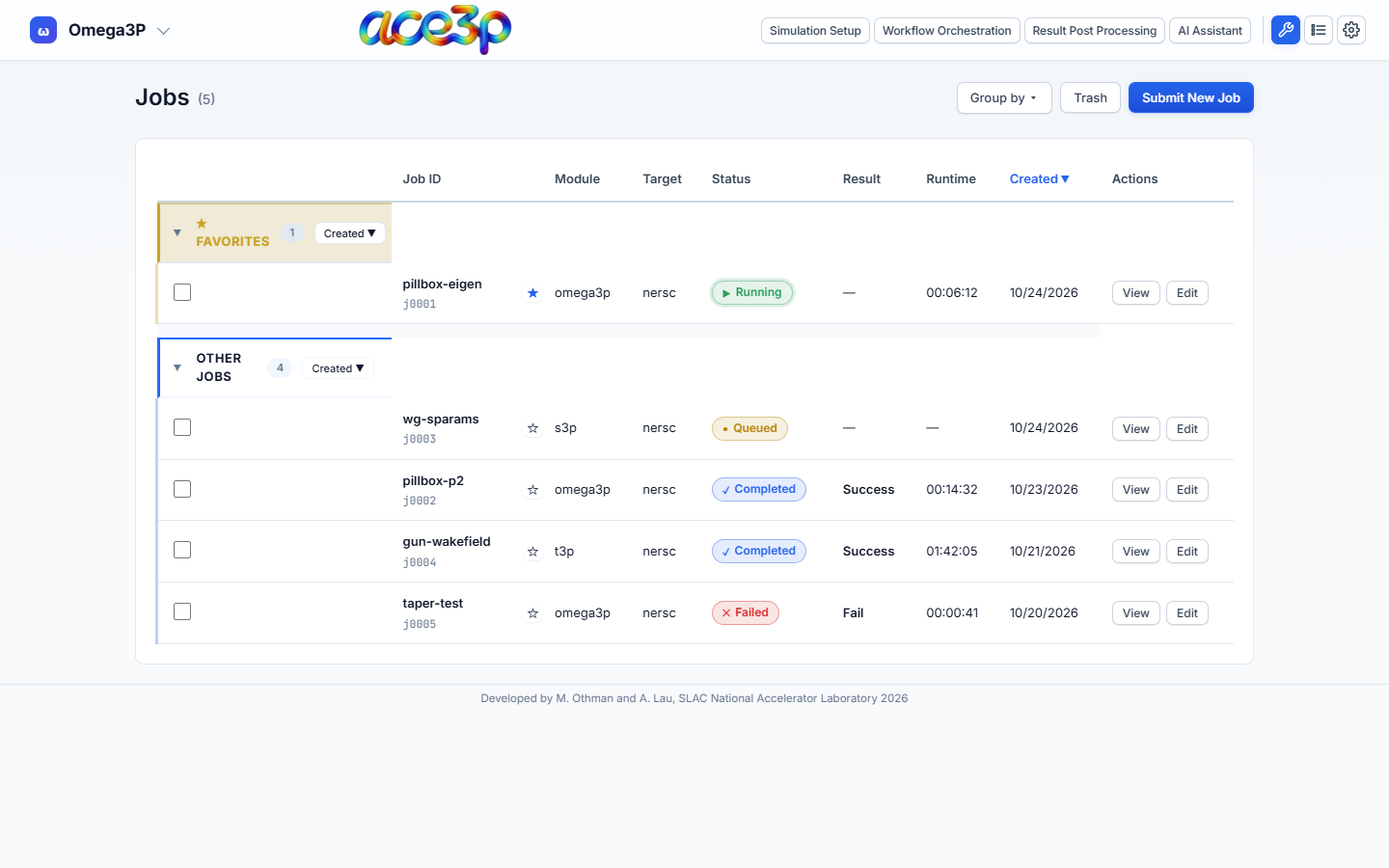
The list shows the jobs of every cluster you are signed in to. It refreshes every 30 seconds while it is open. View → Refresh reloads it at once.
Columns
| Column | Content |
|---|---|
| Checkbox | Selects the job for bulk deletion. |
| Job ID | Job name (if given) and the app's job id. |
| ☆ | Favorite. Click to pin the job to ★ Favorites. |
| Module | The solver. |
| Target | nersc or s3df. |
| Status | Submitted, Queued, Running, Completed, Failed, Cancelled. |
| Result | Success or Fail once the job has ended. |
| Runtime | Elapsed time reported by Slurm. |
| Created | Submission date. |
| Actions | View and Edit. |
Click a column heading to sort by it; click again to reverse. Group by groups the rows by module or by cluster. Each group has its own sort menu and can be collapsed with its ▸ arrow.
Job status
| Status | Meaning |
|---|---|
| Submitted | sbatch accepted the job. |
| Queued | Slurm state PENDING: waiting for nodes. |
| Running | Slurm state RUNNING. |
| Completed | Slurm state COMPLETED: the script exited with code 0. |
| Failed | Slurm state FAILED, TIMEOUT, OUT_OF_MEMORY or NODE_FAIL. |
| Cancelled | The job was cancelled. |
Note
Completed means the batch script finished without an error code. Check the output log to confirm the solver converged.
Job detail
Press View on a job.
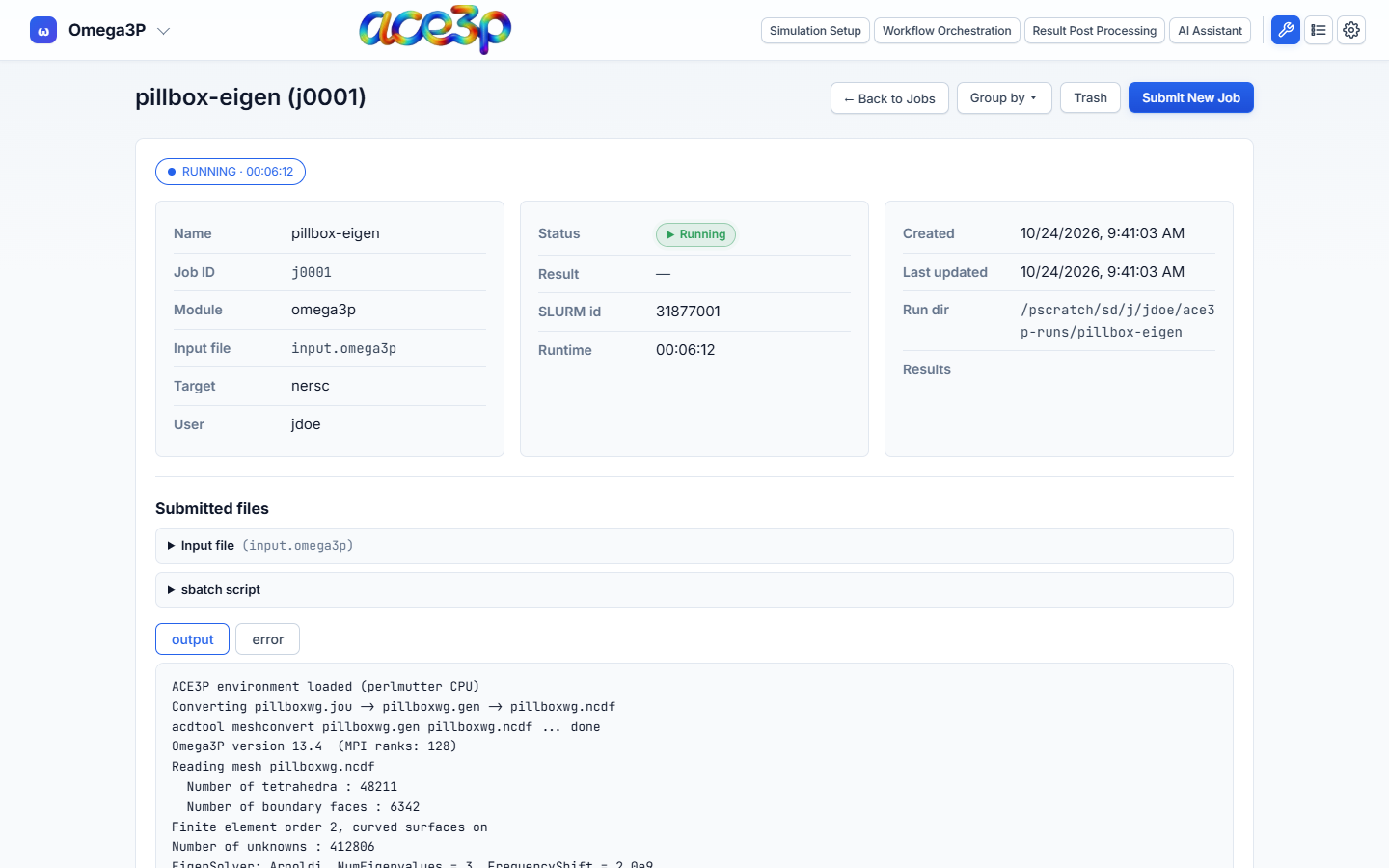
- Status pill (top left): Slurm state and runtime, polled while the page is open.
- Info cards: name, job id, solver, input file, cluster, user, Slurm id, creation time and run directory.
- Submitted files: the input file and sbatch script exactly as submitted.
- Logs: the end of
<solver>-<jobid>.out. Press error for the.errfile. Both refresh while the job runs. - Results: available once the run directory has output.
← Back to Jobs returns to the list.
Results
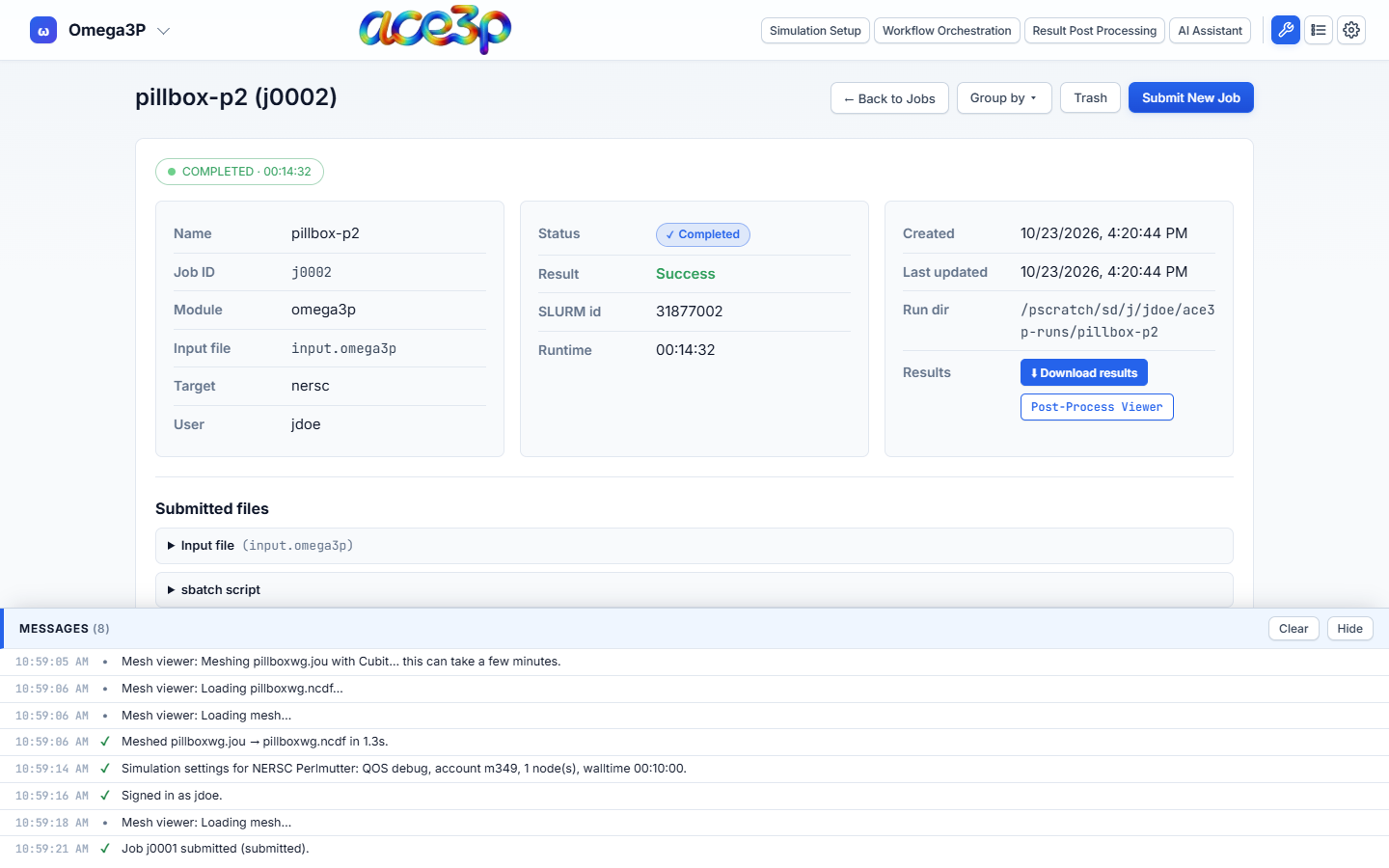
| Button | What it does |
|---|---|
| Download results | Packs the whole run directory into one .tar.gz on the cluster, downloads it, and removes the archive from the cluster. |
| Post-Process Viewer | Omega3P, S3P and T3P jobs that completed: draws the fields of the .mod files on the mesh in the browser. |
For acdtool post-processing and plots of result tables, open Result Post Processing.
Post-Process Viewer
The viewer downloads the mesh and the mode files from the run directory and draws them.
- Mode: pick the mode (Omega3P) or frequency (S3P).
- Time slider and Play (T3P): step through the saved time steps.
- Fields: the quantity to colour by.
- Color range: fix the minimum and maximum.
- Symmetry: mirror the model across X or Y to show the full structure of a quarter or half model.
- Sidesets: show or hide boundary surfaces.
Edit, cancel and delete
Press Edit on a job.
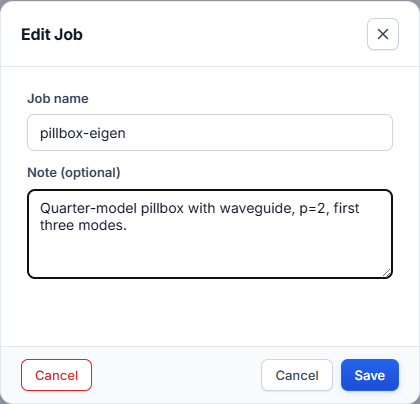
- Name: the label shown in the list.
- Note: a longer description for your own records.
- Cancel (queued or running jobs): runs
scancelon the cluster. - Delete (finished jobs): moves the job to the Trash. The files on the cluster are not touched.
Press Save to keep name and note changes.
To delete several jobs, tick their checkboxes and press Delete Selected.
Trash
Press Trash to see deleted jobs.
- Restore puts a job back in the list.
- Delete forever removes it from the history for good. A permanently deleted job does not come back on the next sync.
History on several computers
Job history follows your cluster account, not the computer. When you sign in, the dashboard merges:
- your ACE3P jobs from the last 30 days of Slurm history (
sacct), and - a small state file the app keeps in your cluster home directory,
~/.ace3p_gui_state.json.
Names, notes, favorites and deletions therefore appear on every computer you use. A job first seen on another computer shows its status, logs and results, but not the original input file and sbatch script. Jobs older than 30 days and not in the state file do not appear.