Set up a model provider
The AI Assistant needs a language model. Open the AI Assistant tab, press ⚙, choose one of three providers, fill it in, press Test connection, then Save.
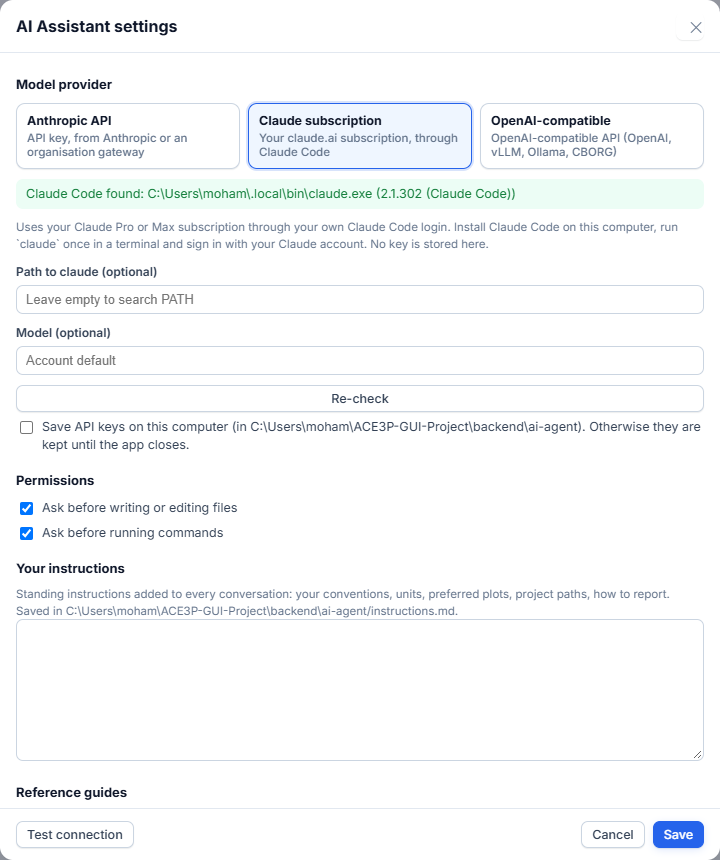
| Provider | You supply | Billing |
|---|---|---|
| Claude subscription | A Claude Pro or Max account, signed in through Claude Code on the computer running the app | Your subscription |
| Anthropic API | An API key from console.anthropic.com, or an organisation gateway's key and URL | Per token, to that account |
| OpenAI-compatible | A base URL, a model name and (if required) a key: OpenAI, a vLLM server, Ollama, CBORG or another gateway | Depends on the server |
Test connection sends one real request. A pass means the provider works end to end. On failure it shows the HTTP status and a hint:
| Status | Meaning |
|---|---|
| 401 / 403 | Wrong key or wrong key header |
| 404 | Wrong URL, or the endpoint speaks the other API format |
| 400 | Usually a wrong model name |
Claude subscription
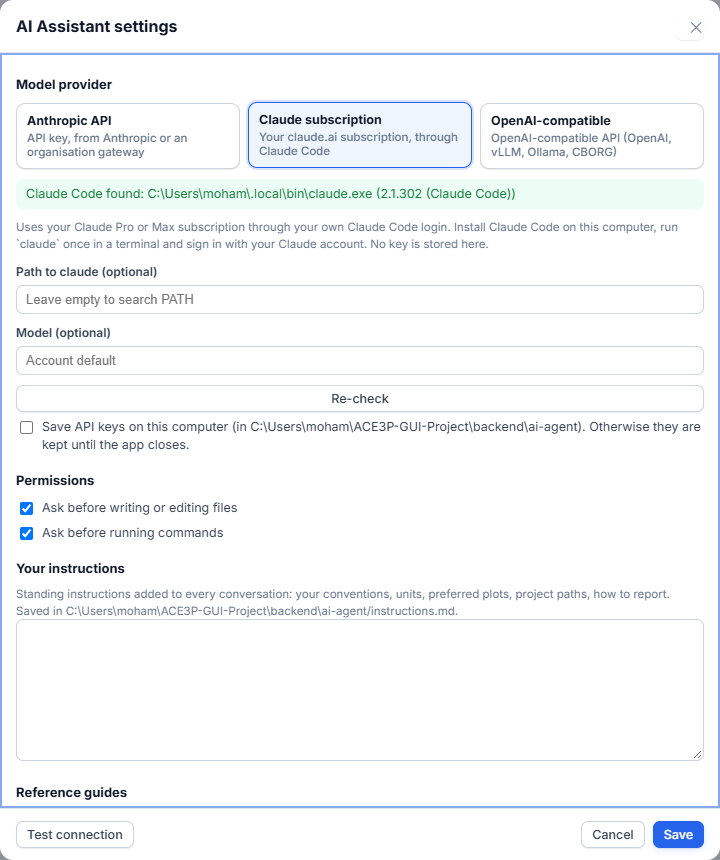
This provider uses Claude Code, signed in with your Claude account. It is set up once on the computer that runs the app (on a cluster: on that login node).
-
Install Claude Code.
-
Open a new terminal and sign in. A browser opens; sign in with your subscription's email. Add
--ssofor organisation single sign-on. -
Check the login. The output must contain
"loggedIn": true. -
In the app, choose Claude subscription and press Re-check. The green line shows the path and version of Claude Code. If the app was already running when you installed Claude Code, restart the app first.
- If Re-check cannot find Claude Code, enter its path in
Path to claude. On Windows it is usually
%USERPROFILE%\.local\bin\claude.exe. - Model is optional:
sonnet,opus,haiku, or empty for your account's default. - Press Test connection, then Save.
The app never sees your Claude credentials. A Pro or Max subscription does not include API keys; this route is how the subscription is used from the app.
Anthropic API
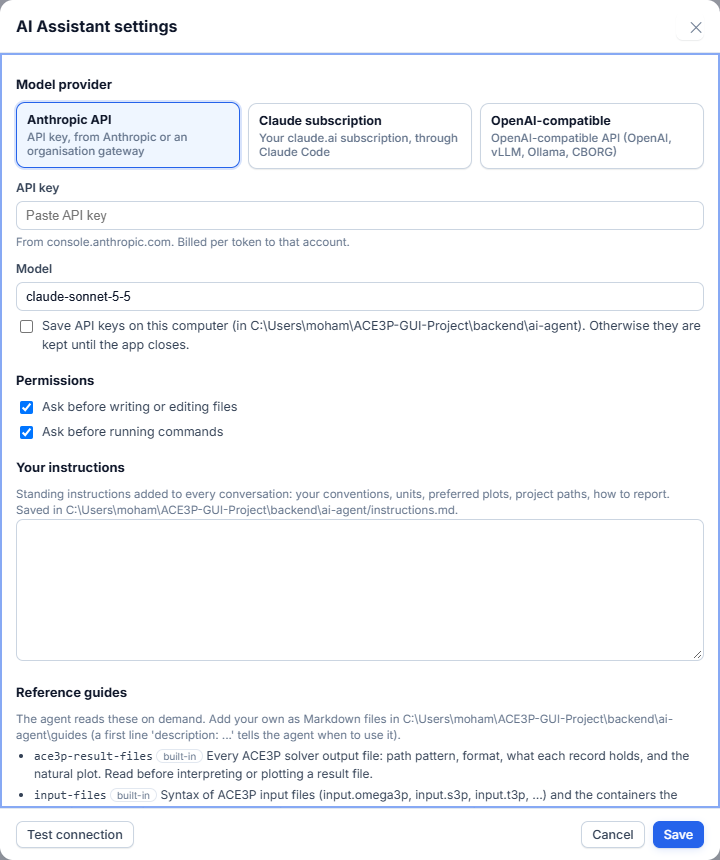
- Choose Anthropic API.
- Paste the API key from console.anthropic.com.
- Pick a Model, for example
claude-sonnet-5-5. - Press Test connection, then Save.
Through an organisation gateway
If your organisation gives you a key for its own endpoint, find out from its documentation which format the endpoint speaks.
- OpenAI format (paths end in
/chat/completions, or the documentation says "OpenAI-compatible"): use the OpenAI-compatible provider below. This is the simpler route. -
Anthropic format (paths end in
/v1/messages, or the documentation says "Anthropic SDK" or "Claude API"): choose Anthropic API, paste the key and enter the model name the gateway lists. The endpoint and key header are not in the dialog. Set them insettings.jsonin the app's AI folder (see API keys for the folder), with the app closed:{ "anthropic_base_url": "https://gateway.example.org/anthropic", "anthropic_auth": "bearer", "anthropic_headers": "X-Project: my-project" }anthropic_base_url: the gateway URL. The base, or the URL ending in/v1or/v1/messages, all work.anthropic_auth:bearersendsAuthorization: Bearer <key>;x-api-key(the default) sendsx-api-key: <key>.anthropic_headers: extra headers, oneName: valueper line.
Keep the other keys of the file as they are. Alternatively, set the environment variable
ACE3P_ANTHROPIC_BASE_URLbefore starting the app.
OpenAI-compatible
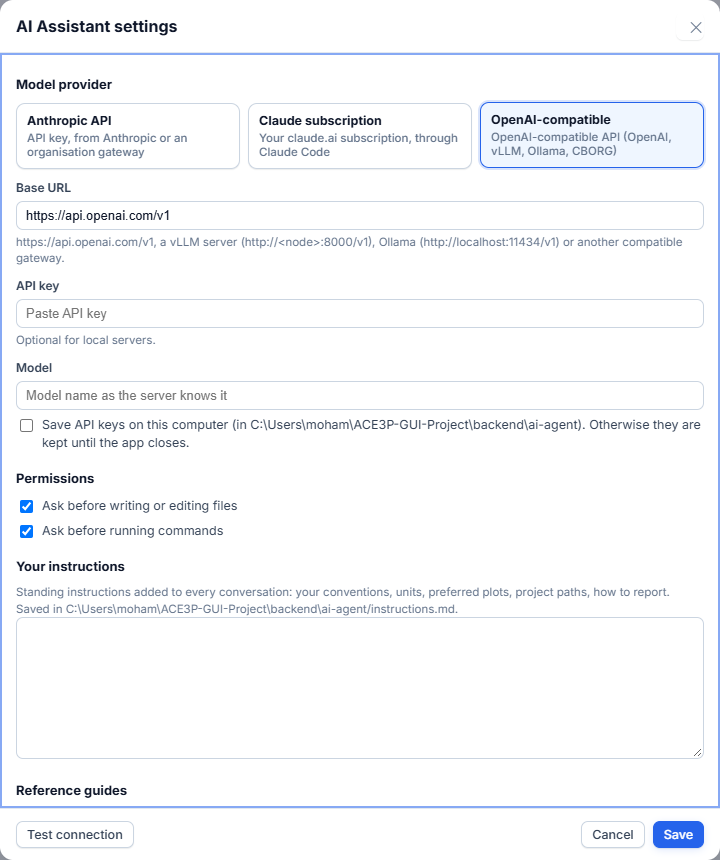
- Choose OpenAI-compatible.
-
Base URL: everything up to and including
/v1.Server Base URL OpenAI https://api.openai.com/v1vLLM on a NERSC GPU node http://<node>:8000/v1or the proxyhttp://127.0.0.1:8077/v1(see vLLM on NERSC)Ollama on your computer http://localhost:11434/v1A gateway (for example CBORG) The URL from its documentation -
API key: required by hosted services, optional for local servers.
- Model: the model name exactly as the server lists it.
- Press Test connection, then Save.
The model must support tool calling. Without it, the assistant can only chat and cannot read files or plot.
API keys
By default, keys are kept in memory and forgotten when the app closes. Tick
Save API keys on this computer to store them in the app's AI folder
(%LOCALAPPDATA%\ACE3P-GUI\ai-agent on Windows,
~/.local/share/ACE3P-GUI/ai-agent on Linux). The page never receives a key
back: settings show only whether a key is set and its last four characters.
When no key is entered, the environment variables ANTHROPIC_API_KEY and
OPENAI_API_KEY are used. HTTPS_PROXY is honoured.
Permissions
| Setting | Default | Effect |
|---|---|---|
| Ask before writing or editing files | On | Every write shows a diff to approve. |
| Ask before running commands | On | Every shell command needs approval. |