Your first Omega3P job
This tutorial takes one job from an empty form to results on disk: an Omega3P eigenmode calculation of a pillbox cavity with a waveguide, meshed from a Cubit journal and run on NERSC Perlmutter. The same steps apply to S3DF and to the other solvers.
You need:
- ACE3P GUI running (Install and launch).
- A Cubit journal (
.jou) that exports a Genesis mesh, or a ready mesh (.genor.ncdf). This tutorial usespillboxwg.jou. - A NERSC account with an allocation, and the MobileOTP app.
- To see the mesh before you submit: Cubit installed on your computer, or the app running on Perlmutter or S3DF. Without Cubit you can still submit; the cluster meshes the journal.
Step 1: Pick the solver
Click the solver name at the top left and choose Omega3P.
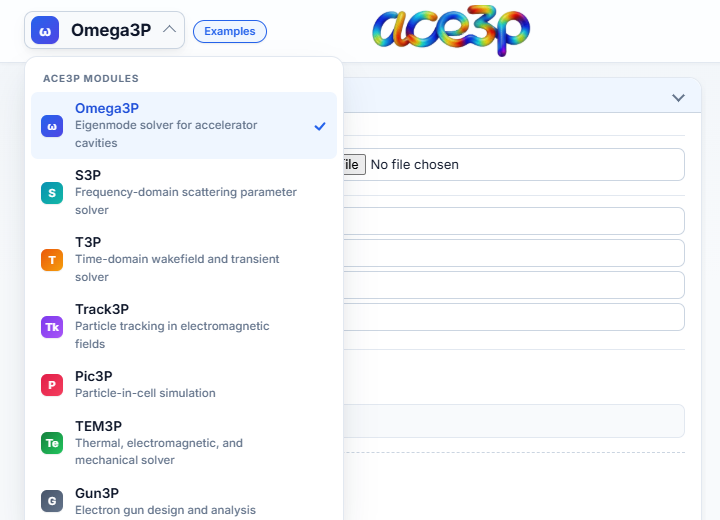
The left pane now shows the Omega3P containers: ModelInfo, FiniteElement,
PRegion, EigenSolver, Port and PostProcess. Boxes with a red dot hold
required fields that are still empty.
Step 2: Choose the mesh
- Open the ModelInfo box.
- Next to File, press Choose File and select
pillboxwg.jou.
The app runs Cubit on the journal in batch mode, converts the exported .gen
to .ncdf, and draws the mesh in the Mesh Viewer. A small journal takes
seconds; a large one can take minutes. Progress appears in the Messages window:
Mesh viewer: Meshing pillboxwg.jou with Cubit... this can take a few minutes.
Meshed pillboxwg.jou → pillboxwg.ncdf in 1.28s.
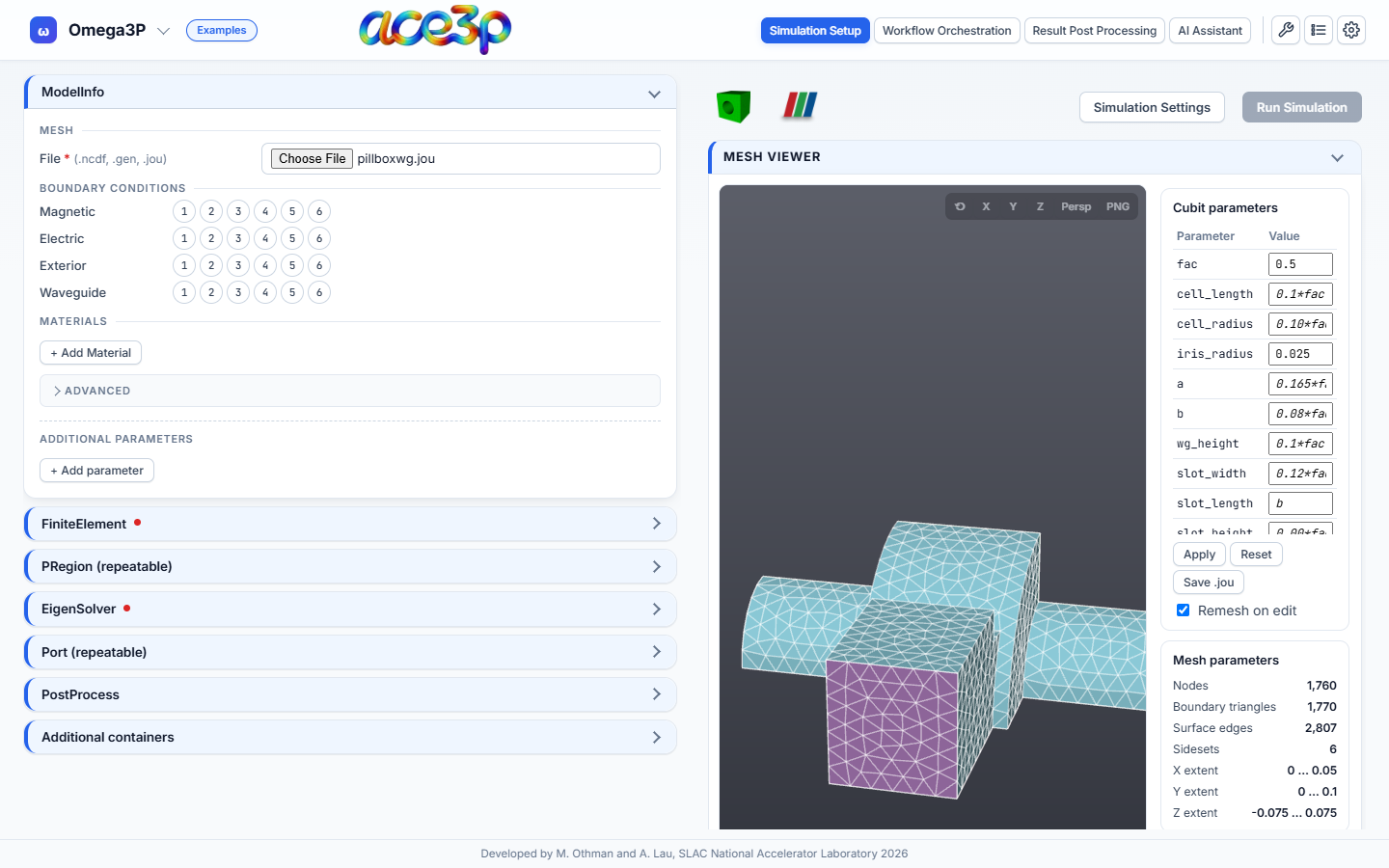
ModelInfo → File is filled in for you with the .ncdf name the solver will
read (./pillboxwg.ncdf). The Cubit parameters table lists every
#{name = value} variable in the journal. The Sidesets list shows the
boundary surfaces the journal defined.
Check the sidesets
Hover over the mesh to see which sideset is under the pointer. Untick a sideset in the list to hide it and see the surfaces behind it. Use the X, Y, Z buttons for axis views and the reset button to fit the model again.
If the Messages window reports that Cubit was not found, see Mesh and Cubit parameters. You can still continue: the batch script meshes the journal on the cluster.
Step 3: Assign boundary conditions
Under BOUNDARY CONDITIONS, each boundary type shows the mesh's sideset numbers as circles. Click a circle to assign that sideset to the boundary type. A sideset can belong to one boundary type only; once used, its circle is greyed out in the other rows.
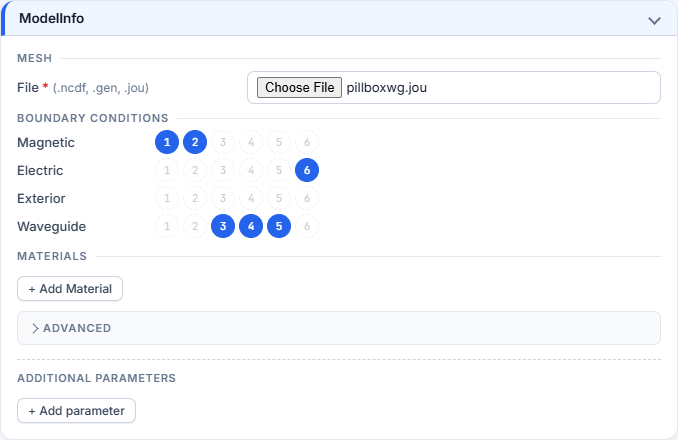
For this model:
| Boundary type | Sidesets |
|---|---|
| Magnetic | 1, 2 |
| Electric | 6 |
| Waveguide | 3, 4, 5 |
Use the sideset definitions in your own journal (sideset <n> surface ...) to
decide which sideset gets which condition. A sideset left unassigned is not
written to the input file.
Step 4: Set the solver parameters
- Open FiniteElement and set Order to
2. - Open EigenSolver and set:
- NumEigenvalues:
3— the number of modes to compute. - FrequencyShift (Hz):
2.0e9— Omega3P finds the modes closest to this frequency. Set it just below the lowest mode you want.
- NumEigenvalues:
- Leave the other fields empty to use the solver defaults shown as grey placeholders.
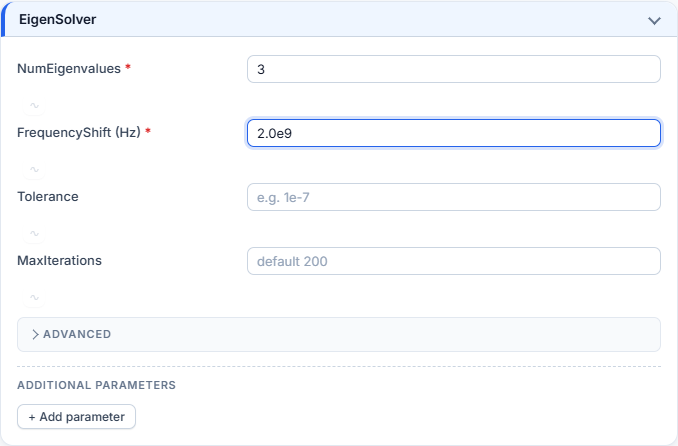
The red dots disappear once every required field is filled.
Step 5: Review the input file
Tick View input file and sbatch in the preview toolbar and select the INPUT FILE tab. The file updates on every keystroke.
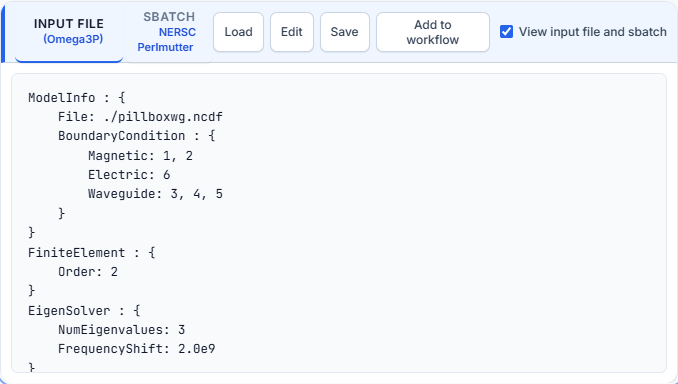
ModelInfo : {
    File: ./pillboxwg.ncdf
    BoundaryCondition : {
        Magnetic: 1, 2
        Electric: 6
        Waveguide: 3, 4, 5
    }
}
FiniteElement : {
    Order: 2
}
EigenSolver : {
    NumEigenvalues: 3
    FrequencyShift: 2.0e9
}
The file is always named input.omega3p. Save downloads it. Edit lets
you change the text directly; the form follows your edits.
Step 6: Set the Slurm resources
Press Simulation Settings (next to Run Simulation).
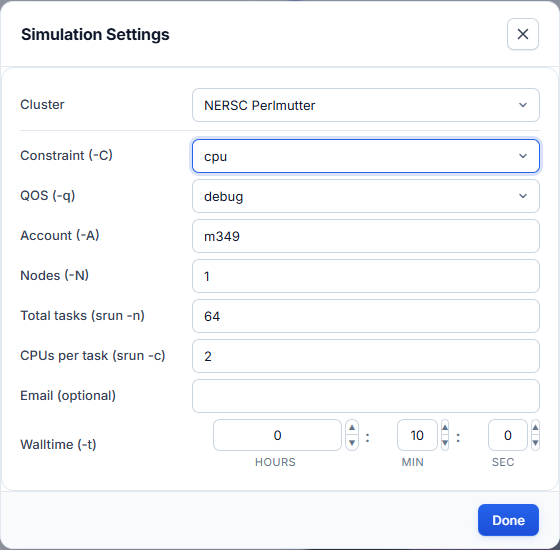
- Cluster: NERSC Perlmutter.
- Constraint:
cpu. - QOS:
debugfor a test run (30 minutes maximum),regularfor production. - Account: your NERSC project, for example
m1234. The default shown is only a placeholder: replace it with a project you are a member of. - Nodes, Total tasks and CPUs per task: the MPI layout.
1node,64tasks,2CPUs per task fills one Perlmutter CPU node. - Walltime: the maximum run time. The job is killed when it is reached.
- Press Done.
Step 7: Review the batch script
Select the SBATCH tab in the preview.
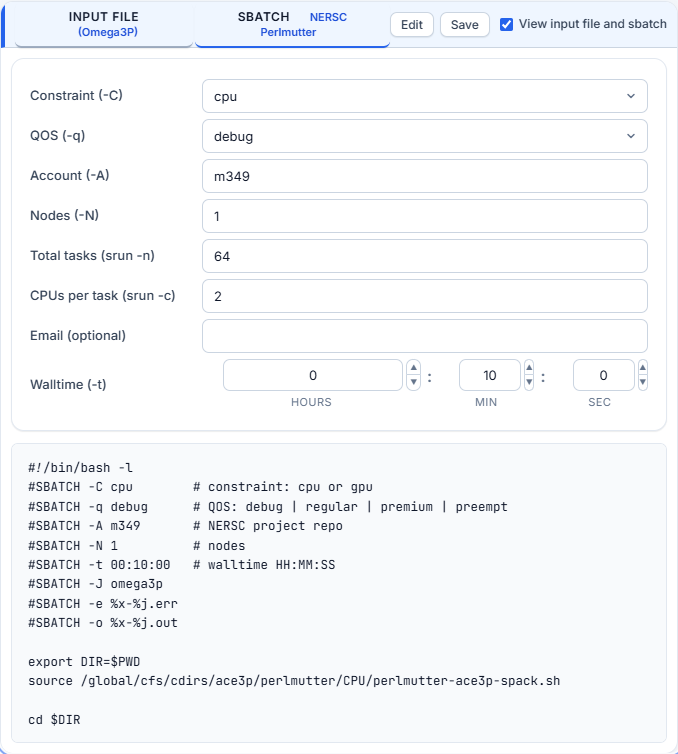
#!/bin/bash -l
#SBATCH -C cpu        # constraint: cpu or gpu
#SBATCH -q debug      # QOS: debug | regular | premium | preempt
#SBATCH -A m1234      # NERSC project repo
#SBATCH -N 1          # nodes
#SBATCH -t 00:10:00   # walltime HH:MM:SS
#SBATCH -J omega3p
#SBATCH -e %x-%j.err
#SBATCH -o %x-%j.out

export DIR=$PWD
source /global/cfs/cdirs/ace3p/perlmutter/CPU/perlmutter-ace3p-spack.sh

cd $DIR

# generate mesh from Cubit journal, then convert to .ncdf
CUBIT="${CUBIT:-$(type -P cubit || echo /global/cfs/cdirs/ace3p/perlmutter/CPU/cubit)}"
"$CUBIT" -nogui pillboxwg.jou
acdtool meshconvert pillboxwg.gen

srun -n 64 -c 2 --cpu-bind=cores /global/cfs/cdirs/ace3p/perlmutter/CPU/omega3p input.omega3p
The script loads the ACE3P environment, meshes the journal with the site's
Cubit, converts it with acdtool, and runs Omega3P with srun. Logs go to
omega3p-<jobid>.out and omega3p-<jobid>.err.
Step 8: Sign in
Press Run Simulation. The button is green when the mesh, input file and sbatch script are ready; its tooltip names anything still missing.
If NERSC is not signed in yet, the Authenticate dialog opens:
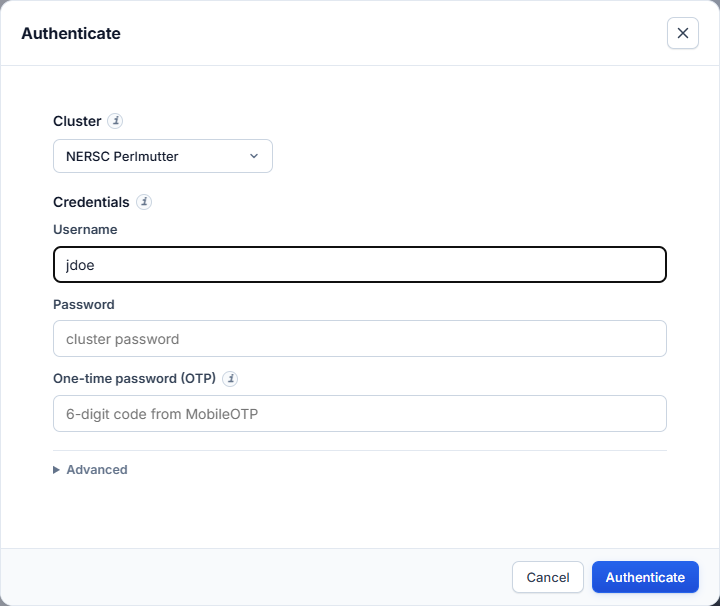
Enter your user name, password and the MobileOTP code, then press Authenticate. The Run Simulation dialog opens next. See Sign in to a cluster for S3DF.
Step 9: Submit
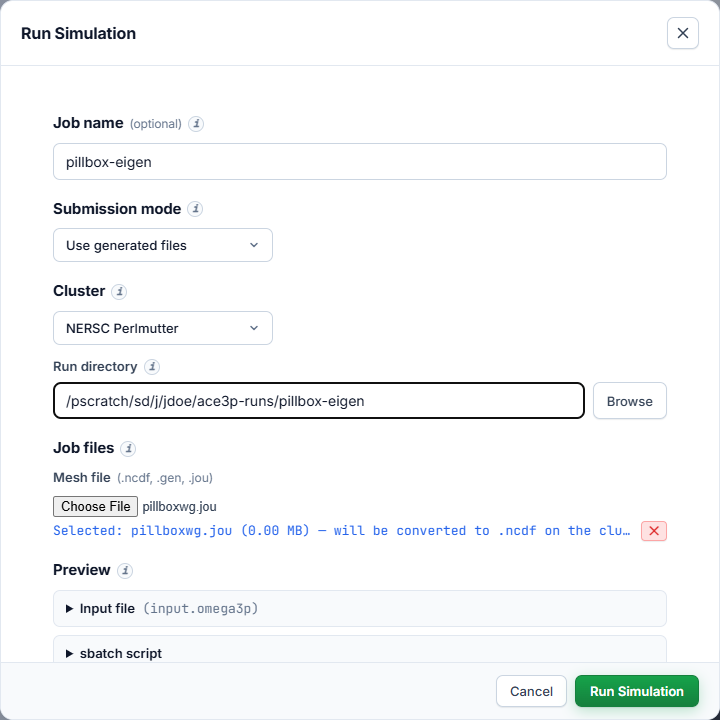
- Job name:
pillbox-eigen. It labels the job in the dashboard. - Submission mode: Use generated files.
- Cluster: NERSC Perlmutter.
-
Run directory: the folder on the cluster where the job runs. Use scratch, for example
/pscratch/sd/j/jdoe/ace3p-runs/pillbox-eigen. Press Browse to pick or create a folder.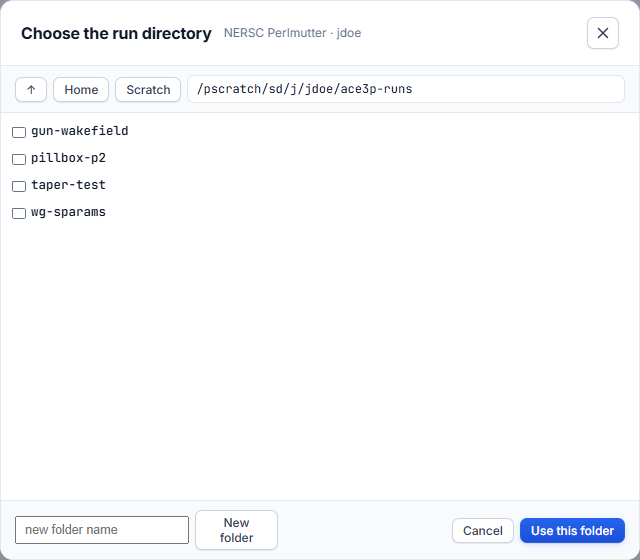
-
Mesh file: already set to
pillboxwg.jou. - Open Preview to check the input file and sbatch script one last time.
- Press Run Simulation.
The progress bar shows the upload of the mesh, the input file and the script,
then sbatch. On success:

Run directory rules
The files go into the run directory exactly as typed. No subfolder is added. A run directory that still holds a submitted, queued or running job is refused: use a new folder for each concurrent job.
Step 10: Monitor the job
Press Go to Jobs Dashboard.
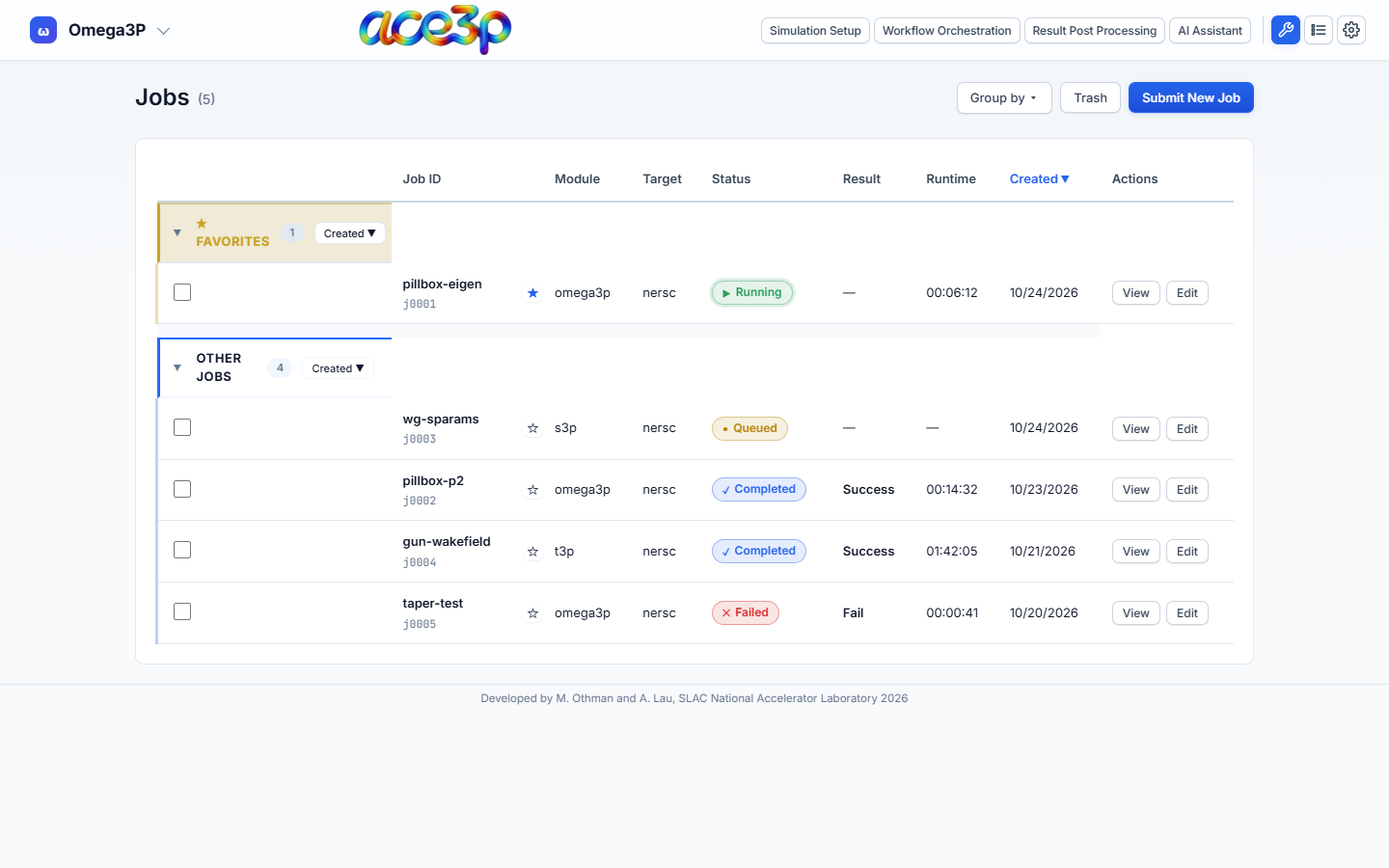
The status follows Slurm: Submitted → Queued → Running → Completed (or Failed / Cancelled). Press View on the job.
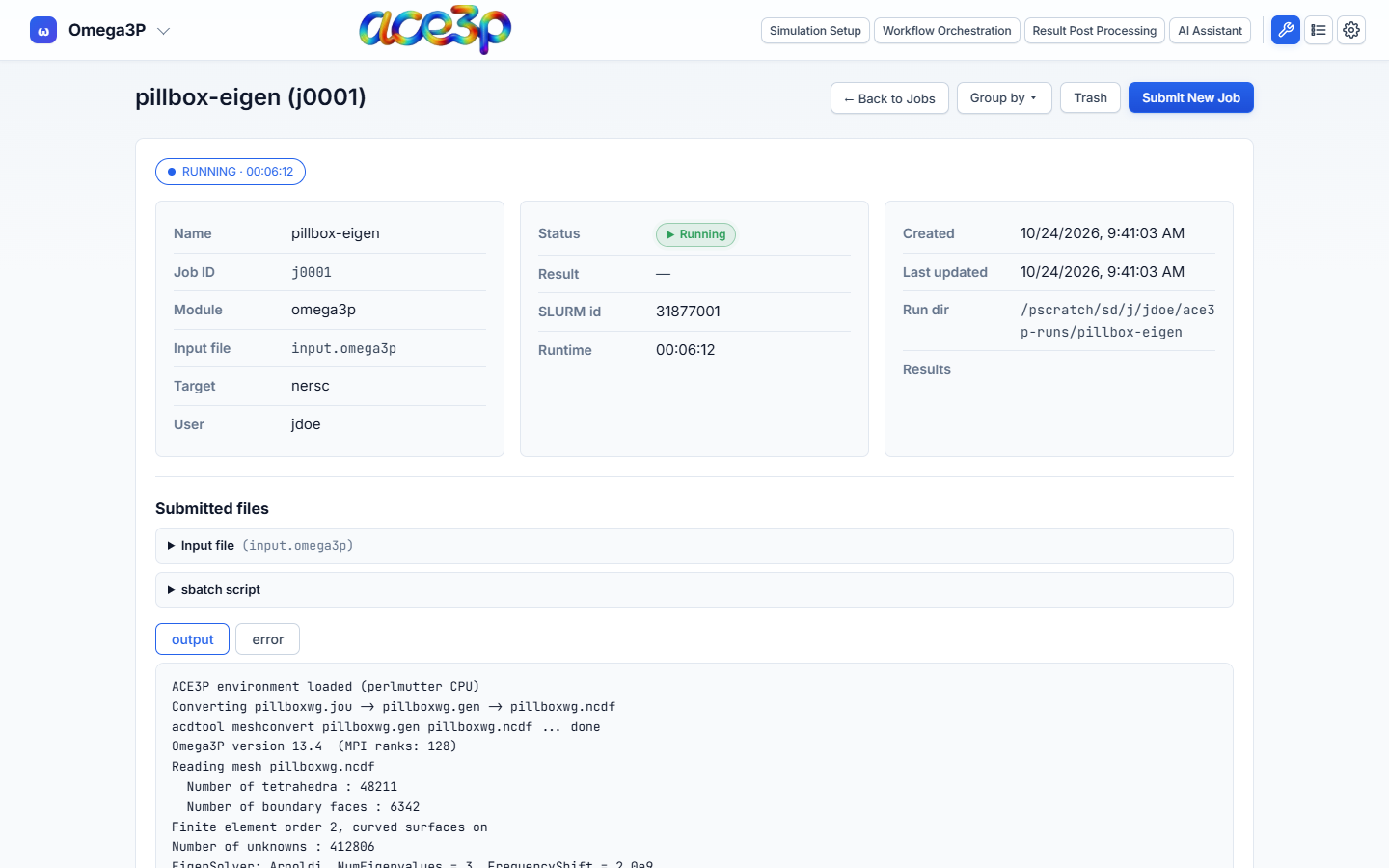
The detail page polls Slurm for the status and runtime and shows the end of the output and error logs. Switch logs with the output / error buttons.
Step 11: Get the results
When the job is Completed, the Results row of the detail page offers:

- Download results — the whole run directory as one
.tar.gz. - Post-Process Viewer — draws the computed modes on the mesh surface, in the browser.
For R/Q, kick factors, field maps and plots of result tables, open Result Post Processing. It starts on this job's run directory. See Result Post Processing.
Checklist for a correct job
- The right solver is selected in the header.
- A mesh file is chosen and the Mesh Viewer shows the expected geometry.
- Every sideset that needs a boundary condition is assigned to exactly one type.
- No container shows a red dot.
- The input file preview contains the values you intended.
- Simulation Settings: correct cluster, your account, a QOS that fits the walltime.
- The run directory is on scratch and not used by a running job.